Essential Windows Batch Commands for IT Administrators
Essential Windows Batch Commands for IT Administrators
Batch files have been part of Microsoft Windows for decades and remain one of the simplest and most effective ways to automate repetitive administrative tasks. While PowerShell has become increasingly popular, batch scripting is still widely used for logon scripts, software deployment, network administration, and troubleshooting.
Whether you manage a single office computer or hundreds of business workstations, learning a few essential batch commands can save significant time and reduce manual work.
This guide introduces the most useful Windows batch commands every IT administrator should know, along with practical examples.
What Is a Batch File?
A batch file is a text file containing one or more Command Prompt (CMD) commands that execute automatically when the file is run.
Batch files use either the .BAT or .CMD extension.
Example:
DailyBackup.bat
They are commonly used to automate:
- Network drive mapping
- File backups
- User management
- Printer deployment
- Windows maintenance
- Startup tasks
- System diagnostics
1. ECHO
Displays text on the screen.
echo Hello World
Turn command display off:
@echo off
This is usually the first line in almost every batch file.
2. PAUSE
Waits for the user before closing the window.
pause
Output:
Press any key to continue...
Useful during troubleshooting.
3. CLS
Clears the Command Prompt screen.
cls
4. TITLE
Changes the Command Prompt title.
title Backup Utility
5. REM
Creates comments.
REM Backup starts here
or
:: Backup starts here
Comments improve readability.
6. SET
Creates variables.
set USER=Administrator
Use later:
echo %USER%
Variables make scripts easier to maintain.
7. IF
Makes decisions.
if exist C:\Backup (
echo Folder exists
)
Example:
if not exist D:\Backup mkdir D:\Backup
8. GOTO
Jumps to another section.
goto END
echo This line never runs.
:END
echo Finished.
9. FOR
Repeats commands.
Example:
for %%F in (*.txt) do echo %%F
Very useful when processing multiple files.
10. COPY
Copies files.
copy report.pdf D:\Backup
11. XCOPY
Copies folders.
xcopy C:\Data D:\Backup /E /Y
Common options:
|
Switch |
Description |
|
/E |
Include subfolders |
|
/Y |
Overwrite automatically |
|
/H |
Copy hidden files |
12. ROBOCOPY
The preferred tool for backups.
robocopy C:\Data D:\Backup /MIR
Advantages:
- Faster
- Restartable
- Reliable
- Supports permissions
- Handles large folders
13. DEL
Deletes files.
del *.tmp
Delete quietly:
del *.log /Q
14. RD
Removes directories.
rd TestFolder
Delete recursively:
rd /S /Q TestFolder
15. MKDIR (MD)
Creates folders.
mkdir Reports
16. REN
Renames files.
ren old.txt new.txt
17. MOVE
Moves files.
move *.pdf D:\Archive
18. NET USE
Maps network drives.
net use Z: \\SERVER\Shared
Remove mapping:
net use Z: /delete
One of the most frequently used IT administration commands.
19. NET USER
Creates and manages users.
List users:
net user
Create user:
net user John Password123 /add
Delete user:
net user John /delete
20. NET LOCALGROUP
Add users to groups.
net localgroup Administrators John /add
21. IPConfig
Display IP configuration.
ipconfig
More useful:
ipconfig /all
Release IP:
ipconfig /release
Renew IP:
ipconfig /renew
Flush DNS:
ipconfig /flushdns
22. PING
Tests network connectivity.
ping google.com
Or
ping 192.168.1.1
23. TRACERT
Shows the network route.
tracert google.com
Useful for diagnosing network issues.
24. TASKLIST
Shows running processes.
tasklist
Find a process:
tasklist | find "chrome"
25. TASKKILL
Ends processes.
taskkill /IM notepad.exe /F
26. SHUTDOWN
Restart Windows.
shutdown /r /t 0
Shutdown:
shutdown /s /t 0
Abort:
shutdown /a
27. SC
Manage Windows services.
Stop:
sc stop Spooler
Start:
sc start Spooler
28. WMIC (Legacy)
Retrieve system information.
wmic bios get serialnumber
Although deprecated, it is still available on many Windows installations.
29. SYSTEMINFO
Display detailed system information.
systeminfo
Includes:
- Windows version
- RAM
- Processor
- Installed hotfixes
- Boot time
30. HOSTNAME
Display computer name.
hostname
31. WHOAMI
Show the current logged-on user.
whoami
32. NET SHARE
List shared folders.
net share
33. NET VIEW
View computers on the network.
net view
34. PUSHD and POPD
Temporarily change directories.
pushd C:\Logs
Return:
popd
35. EXIT
Exit Command Prompt.
exit
Example: Daily Backup Script
@echo off
title Daily Backup
echo Creating backup...
robocopy C:\CompanyData D:\Backups /MIR
echo Backup completed successfully.
pause
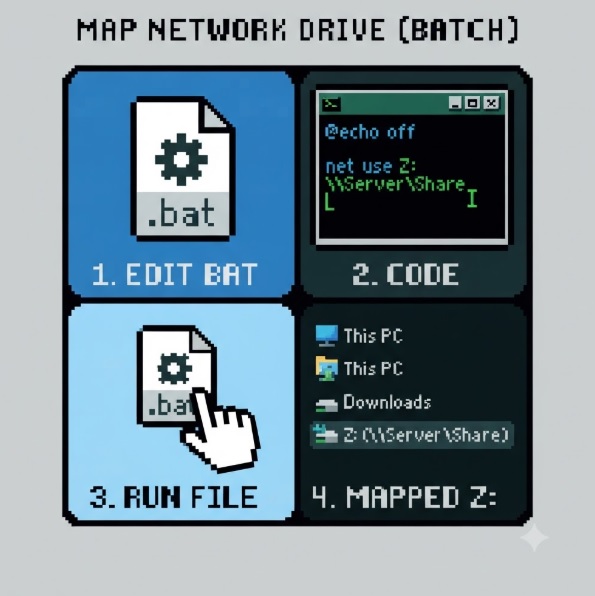
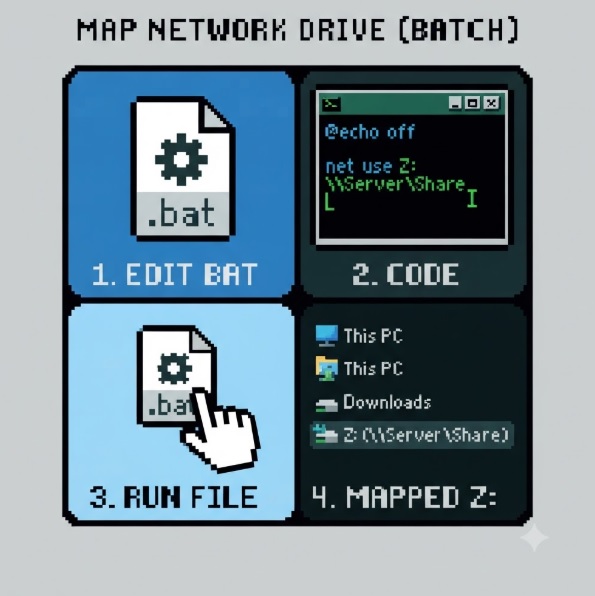
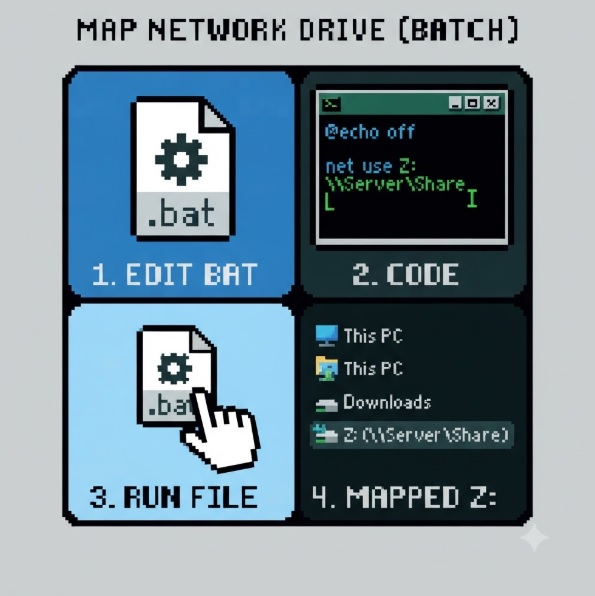
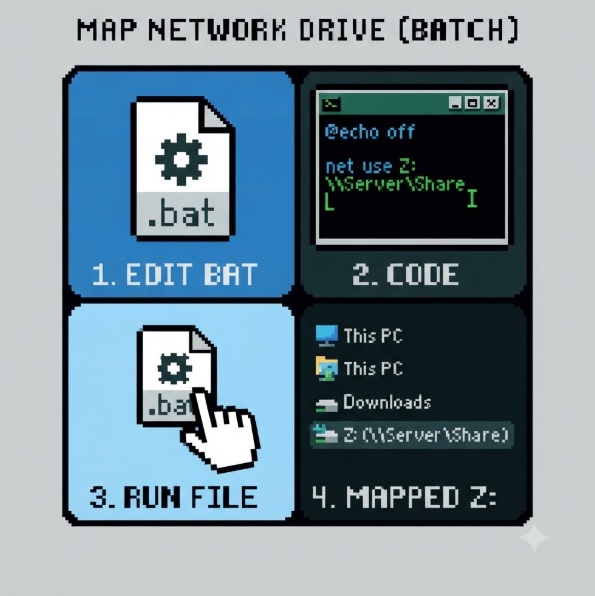
Example: Map a Network Drive
@echo off
net use Z: "\\SERVER\Shared" /persistent:yes
pause
Example: Display System Information
@echo off
echo Computer:
hostname
echo.
echo Logged-in User:
whoami
echo.
ipconfig
pause
Best Practices
- Always test scripts on a non-production computer.
- Run administrative commands with elevated privileges.
- Add comments to improve readability.
- Validate paths before deleting files.
- Avoid storing passwords directly in batch files.
- Use robocopy instead of xcopy for large backups.
- Use variables to simplify maintenance.
- Keep scripts in a central repository with version control where possible.
Frequently Asked Questions
Are batch files still useful?
Yes. Batch files remain widely used for simple automation, logon scripts, software deployment, and system administration.
What's the difference between Batch and PowerShell?
|
Batch Files |
PowerShell |
|
Simple syntax |
More powerful scripting language |
|
Built into every Windows installation |
Built into modern Windows |
|
Excellent for basic automation |
Better for advanced administration and automation |
|
Limited programming features |
Rich object-based scripting and extensive modules |
For quick administrative tasks, batch files are often sufficient. For more complex automation, PowerShell is generally the better choice.
Do batch files work on Windows 11?
Yes. Windows 11 fully supports traditional batch (.BAT and .CMD) files.
Conclusion
Windows batch scripting remains a valuable skill for IT administrators. Even in modern environments where PowerShell is widely available, batch files provide a lightweight, fast, and reliable way to automate everyday administrative tasks. By mastering commands such as net use, robocopy, ipconfig, taskkill, and systeminfo, you can simplify system management, reduce repetitive work, and improve operational efficiency.
As your scripting needs grow, you can combine batch files with PowerShell to create even more powerful automation workflows while maintaining compatibility across Windows environments.