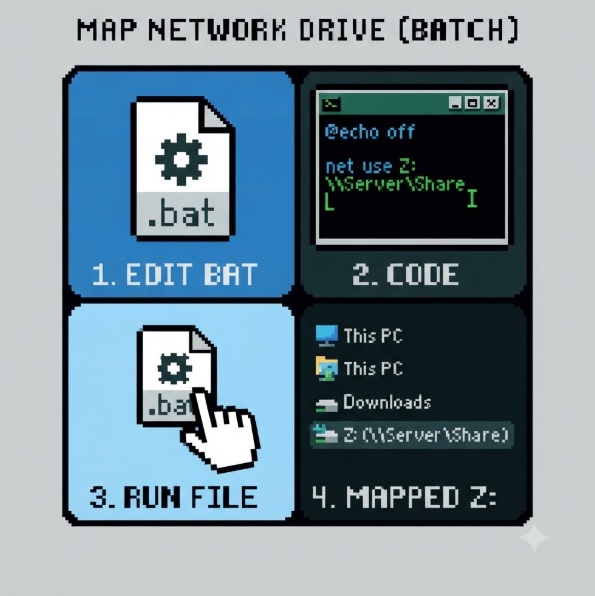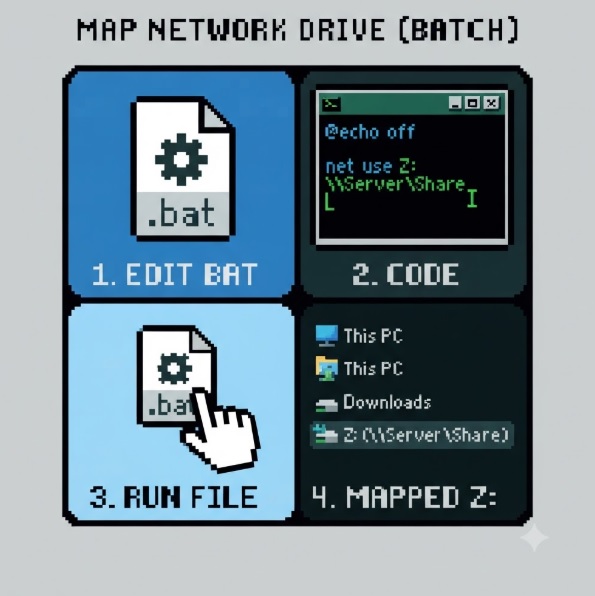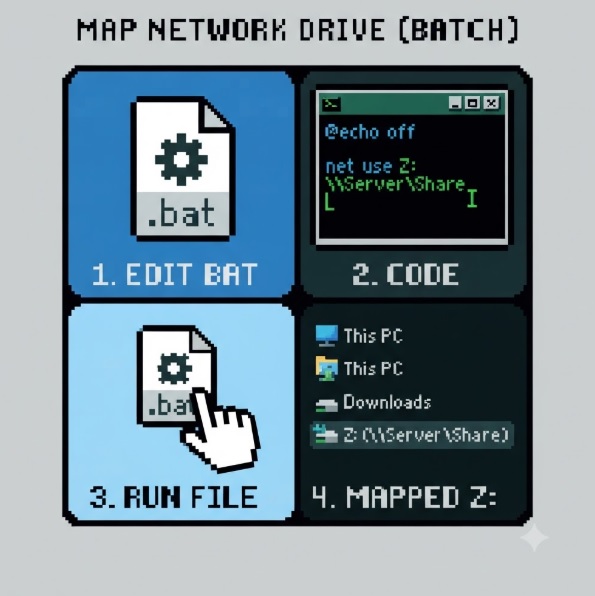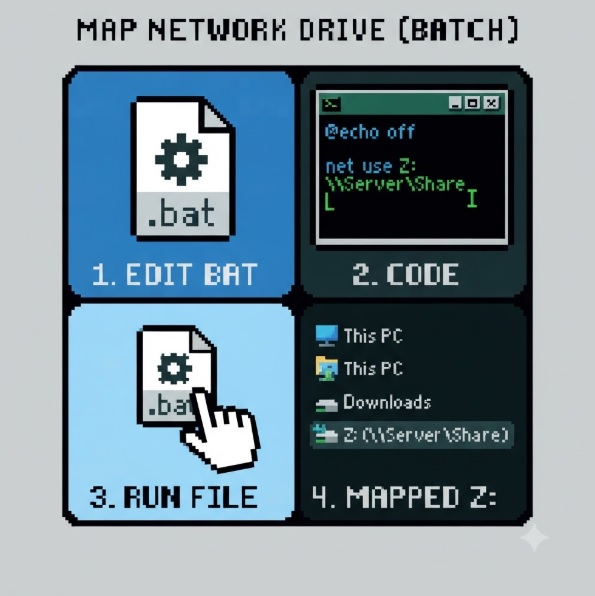
How to Map a Network Drive Using a Batch File
How to Map a Network Drive Using a Batch File
In many businesses, employees access files stored on a central server or NAS (Network Attached Storage). Instead of browsing to the shared folder every time, Windows allows you to map a network folder as a drive letter, making it appear just like a local hard drive.
Using a Windows Batch (.BAT) file, you can automate this process, making deployment quick and consistent across multiple computers.
Whether you're an IT administrator, office manager, or small business owner, this guide explains everything you need to know about mapping network drives using batch files.
What Is a Network Drive?
A network drive is simply a shared folder located on another computer, Windows Server, or NAS device.
For example:
\\FILESERVER\Shared
After mapping it as drive Z:, users can simply access:
Z:\
instead of typing the full network path every time.
Why Map Network Drives?
Mapping network drives provides several benefits:
- Easier access to shared files
- Consistent drive letters across all computers
- Simplifies backup procedures
- Reduces typing errors
- Easy deployment for multiple users
- Supports automation during Windows startup
- Improves productivity in office environments
What Is a Batch File?
A batch file is a simple text file with the .BAT or .CMD extension that executes Windows Command Prompt commands automatically.
Example:
MapDrive.bat
Double-clicking the file runs all commands inside it.
The NET USE Command
Windows provides a built-in command called:
net use
This command is used to:
- Map network drives
- Disconnect mapped drives
- Connect using credentials
- View active network connections
Basic syntax:
net use DriveLetter: \\Server\Share
Example:
net use Z: \\FILESERVER\Public
Example 1 – Simple Network Drive Mapping
This is the most common example.
@echo off
net use Z: "\\FILESERVER\Public" /persistent:yes
pause
What this does
- Maps drive Z:
- Connects to \FILESERVER\Public
- Saves the mapping after reboot
Example 2 – Remove Existing Mapping First
Sometimes the drive letter is already in use.
@echo off
net use Z: /delete /y
net use Z: "\\FILESERVER\Public" /persistent:yes
pause
This removes any previous mapping before creating a new one.
Example 3 – Map Using an IP Address
Instead of the server name, you can use its IP address.
@echo off
net use Z: "\\192.168.1.20\Shared" /persistent:yes
pause
This is useful if DNS or computer name resolution is unavailable.
Example 4 – Map Using a Username and Password
Some shared folders require authentication.
@echo off
net use Z: "\\FILESERVER\Accounts" /user:FILESERVER\administrator MyPassword123 /persistent:yes
pause
Parameters
|
Parameter |
Description |
|
Z: |
Drive letter |
|
FILESERVER |
Server name |
|
administrator |
Username |
|
MyPassword123 |
Password |
Security Tip: Avoid storing passwords directly in batch files. Anyone with access to the file can read them.
Example 5 – Prompt for the Password
A safer method is to let Windows request the password.
@echo off
net use Z: "\\FILESERVER\Accounts" /user:FILESERVER\administrator *
pause
The * causes Windows to prompt for the password without exposing it in the script.
Example 6 – Map Multiple Network Drives
Many businesses use multiple shared folders.
@echo off
net use Z: "\\FILESERVER\Accounts" /persistent:yes
net use Y: "\\FILESERVER\Sales" /persistent:yes
net use X: "\\FILESERVER\HR" /persistent:yes
pause
After execution:
|
Drive |
Folder |
|
Z: |
Accounts |
|
Y: |
Sales |
|
X: |
HR |
Example 7 – Check Whether the Server Is Online
It's good practice to verify that the server is reachable before attempting to map the drive.
@echo off
ping -n 1 FILESERVER >nul
if errorlevel 1 (
echo Server is offline.
pause
exit
)
net use Z: "\\FILESERVER\Public" /persistent:yes
pause
This avoids confusing error messages if the server is unavailable.
Example 8 – Open the Drive Automatically
After mapping, you can open File Explorer directly to the new drive.
@echo off
net use Z: "\\FILESERVER\Public"
start "" Z:
pause
Example 9 – Remove a Network Drive
To disconnect a mapped drive:
@echo off
net use Z: /delete /y
pause
Example 10 – Remove All Network Drives
Disconnect every mapped network drive:
@echo off
net use * /delete /y
pause
Understanding the /persistent Option
You may notice the parameter:
/persistent:yes
This tells Windows to reconnect the mapped drive automatically after restarting the computer.
To create a temporary mapping instead:
/persistent:no
Common Errors and Solutions
|
Error |
Possible Cause |
Solution |
|
System error 53 |
Server not found |
Verify the server name or IP address. |
|
System error 67 |
Share not found |
Check the shared folder name. |
|
System error 5 |
Access denied |
Confirm permissions or use the correct credentials. |
|
Drive already in use |
Drive letter occupied |
Delete the existing mapping or choose another drive letter. |
|
Network path not found |
Network issue |
Ensure both computers are on the same network and the share is available. |
Best Practices
- Use meaningful drive letters (e.g., S: for Sales, H: for HR).
- Prefer server names over IP addresses when DNS is reliable.
- Do not store passwords in plain text.
- Use Windows credentials or prompt for the password instead.
- Test the script before deploying it to multiple users.
- Consider Group Policy Preferences or logon scripts for domain environments.
Frequently Asked Questions (FAQ)
Does this work on Windows 10 and Windows 11?
Yes. The net use command is built into both Windows 10 and Windows 11.
Can I map a drive automatically when Windows starts?
Yes. Place the batch file in the Startup folder or use Task Scheduler or a domain logon script.
Can I use an IP address instead of a computer name?
Yes. For example:
\\192.168.1.20\Shared
Can I map a NAS device?
Yes. Most NAS devices, including Synology, QNAP, WD, and Buffalo, support SMB network shares that can be mapped using the same net use command.
What if the drive letter is already in use?
Delete the existing mapping first:
net use Z: /delete /y
or choose a different drive letter.
Conclusion
Mapping network drives with a batch file is a simple yet powerful way to streamline access to shared folders across your organization. By using the built-in net use command, you can automate drive mappings, reduce support requests, and ensure users always connect to the correct network resources.
Whether you're setting up a single office PC or deploying configurations across dozens of computers, batch files remain a quick and effective solution for Windows administrators.