Zebra ZT231 Not Printing? Step-by-Step Troubleshooting Guide
If your Zebra ZT231 is not printing, do not immediately replace the printhead, ribbon, or labels. In many cases, the problem is caused by a paused printer, incorrectly loaded media, an incorrect print mode, sensor calibration, Windows driver settings, or a communication problem.
This guide walks through a step-by-step troubleshooting process, starting with the easiest checks and moving toward more advanced solutions.
Quick Fix: Check These 3 Things First
Before going through the complete troubleshooting procedure:
1. Check the printer status
Look at the ZT231 display.
Check whether the printer shows:
- PAUSED
- MEDIA OUT
- RIBBON OUT
- PRINTHEAD OPEN
- ERROR
- Any other warning message
If the printer is paused, press PAUSE to return it to the ready state.
2. Try printing a test label directly from the printer
This is one of the most important troubleshooting steps.
If the ZT231 can print its own test label, the printer mechanism is probably working and the problem may be related to:
- Windows
- The printer driver
- USB/network communication
- Label-printing software
- Incorrect print settings
Zebra's Print Wizard can configure the printer and print a test label directly from the printer. (Zebra Docs)
3. Check the labels and ribbon
Make sure:
- Labels are loaded correctly.
- The media is positioned under the media sensor.
- The printhead is completely closed.
- The ribbon is loaded correctly if using thermal-transfer printing.
- The ribbon is compatible with the media.
- The media type setting matches the actual labels.
Zebra specifically recommends checking media loading, ribbon loading, test printing, calibration, and printer settings when setting up or troubleshooting a ZT231. (Zebra Technologies)
Step 1 - Is the ZT231 Powered On?
Start with the basics.
Check:
- The power cable is firmly connected.
- The power supply is connected.
- The power switch is ON.
- The printer display is operating normally.
If there is no display or no sign of power:
- Check the wall socket.
- Try another power outlet.
- Check the power cable.
- Power the printer off.
- Wait several seconds.
- Turn it back on.
If the printer freezes
If the printer is powered on but appears completely unresponsive, perform a power cycle.
Turn the printer OFF, wait a few seconds, and turn it back ON.
Zebra's troubleshooting documentation recommends power cycling the printer if it locks up. Persistent lockups can indicate an internal electronic or firmware problem requiring service. (Zebra Docs)
Step 2 - Check the ZT231 Display for an Error
The ZT231 display is your first diagnostic tool.
Look carefully at the message on the screen.
Common problems include:
|
Display/Condition |
What to check |
|
Printer paused |
Press PAUSE |
|
Media out |
Check labels and media sensor |
|
Ribbon out |
Check ribbon installation and calibration |
|
Printhead open |
Close and lock the printhead |
|
Calibration problem |
Run media/ribbon calibration |
|
Printer ready but no print |
Test printer independently from Windows |
|
Printer feeds blank labels |
Check print mode, ribbon and printhead |
Do not keep sending print jobs while the printer is reporting a hardware or media error. Resolve the displayed error first.
Step 3 - Check Whether the Printhead Is Properly Closed
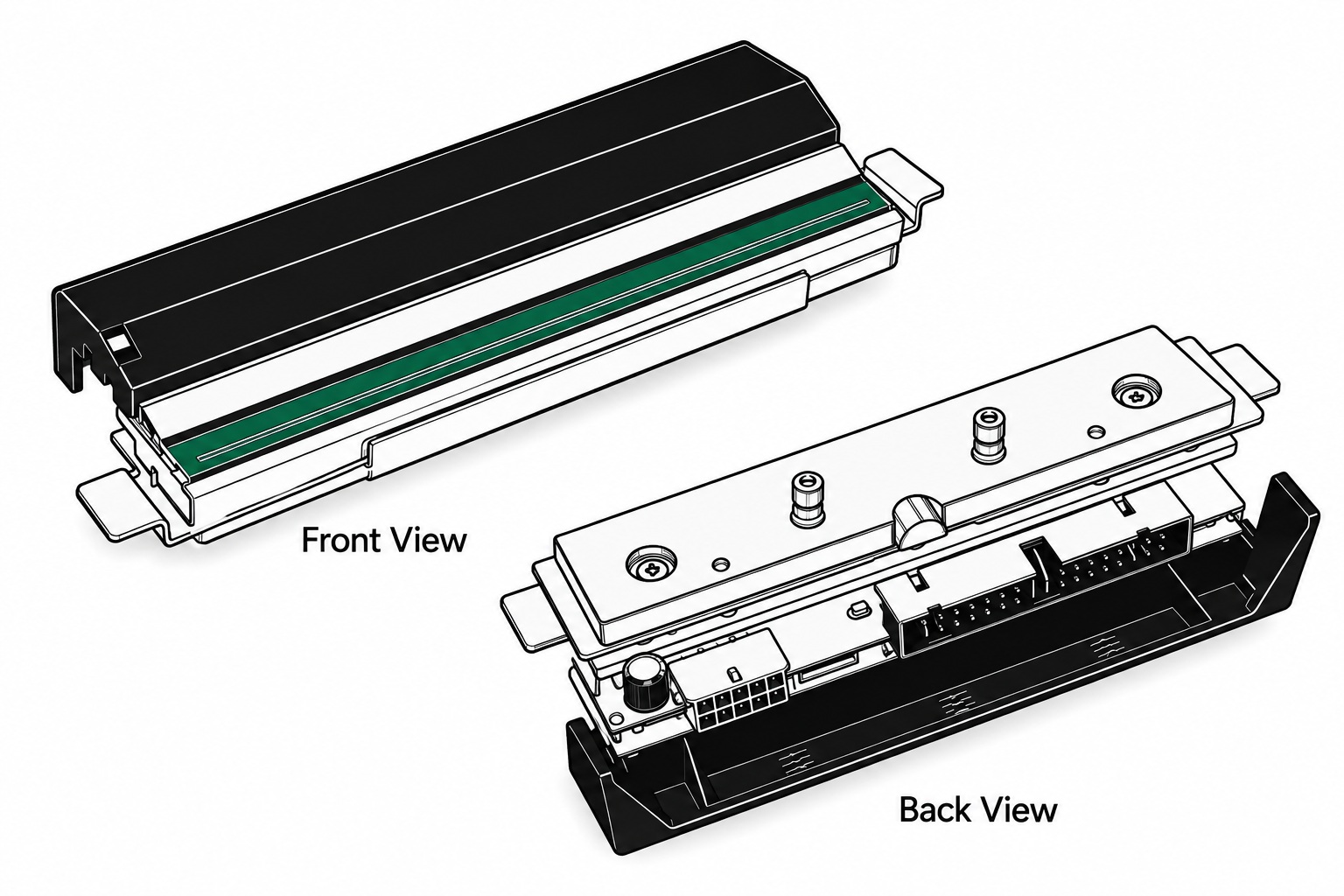
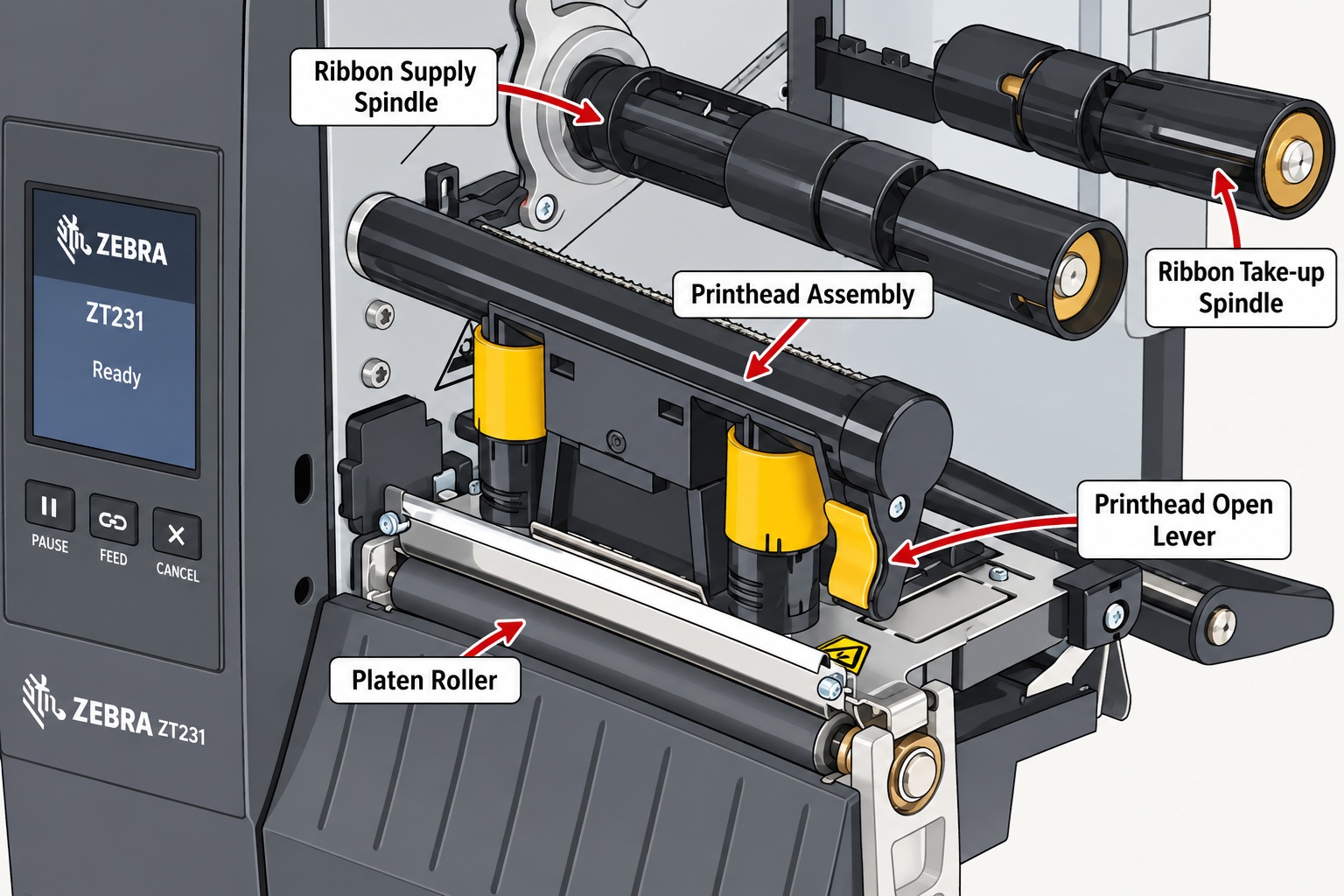
Open the media cover and inspect the printhead assembly.
The printhead should be:
- Properly seated
- Completely closed
- Locked using the printhead-open lever
A partially closed printhead can prevent normal printing.
After closing it, check the display again.
If the error disappears, try printing again.
Step 4 - Check the Label Roll
Incorrectly loaded labels are a very common cause of printing problems.
Open the media cover and check that the label roll is correctly installed.
Make sure:
- The roll is sitting correctly on the media supply hanger.
- Labels travel through the correct media path.
- The media guide is positioned against the edge of the labels without squeezing them.
- The labels pass correctly over the media sensor.
- The labels are not folded, jammed, or stuck.
- The printhead can close properly over the media.
The media guide should keep the labels aligned without restricting their movement.
Zebra identifies incorrect media loading, media-guide positioning, incorrect media type, and calibration as possible causes of registration and feeding problems. (Zebra Docs)
Step 5 - Check the Media Sensor
The ZT231 needs to detect the label correctly.
Depending on your labels, the printer may use:
- Gap sensing
- Black-mark sensing
- Continuous media
If the printer cannot correctly detect the label position, it may:
- Feed multiple labels
- Stop with a media error
- Print in the wrong position
- Skip labels
- Treat individual labels as continuous media
Check that the sensor is positioned correctly for your label stock.
Also make sure the sensor area is clean.
Step 6 - Check the Ribbon
This step applies when you are using Thermal Transfer printing.
If your ZT231 uses ribbon, check:
- Ribbon is installed correctly.
- Ribbon is feeding in the correct direction.
- Ribbon is properly routed underneath the printhead.
- Ribbon is attached to the take-up spindle.
- Ribbon is tight and not badly wrinkled.
- Ribbon is wider than the printable media.
- The coated side of the ribbon is facing the media.
Zebra specifies that standard ZT231 thermal-transfer ribbon should be coated on the outside and recommends ribbon wider than the media to help protect the printhead. (Zebra Docs)
Important
If you are using Direct Thermal labels, you normally do not need a ribbon.
Make sure the printer's Print Type setting matches your actual printing method.
Step 7 - Check Print Type
A ZT231 can use different printing methods.
The important settings include:
- Thermal Transfer
- Direct Thermal
If the printer is configured for the wrong method, you can get unexpected results.
For example:
Direct Thermal labels + Thermal Transfer setting
may cause the printer to expect a ribbon.
Thermal Transfer labels + Direct Thermal setting
can result in incorrect printing because the required ribbon is not being used.
Check:
Menu → Print → Print Quality → Print Type
The ZT231's Print menu includes the Print Type setting as well as darkness and print-speed controls. (Zebra Docs)
Step 8 - Run a Printer Test Label
This is the most important diagnostic test.
You want to determine:
Can the ZT231 print by itself without Windows or your application?
Use the printer's built-in Print Wizard.
On the ZT231:
Home → Wizards → Print → Start Print
Follow the instructions on the screen.
The wizard asks you to specify settings such as:
- Print type
- Label type
- Label width
- Collection method
It then calibrates the printer and provides the option to print a test label. (Zebra Docs)
Step 9 - What Does the Test Tell You?
This is where the troubleshooting path becomes much easier.
Test label prints correctly
If the ZT231 prints a good test label:
Printer hardware + media path + printhead are probably functioning.
Your problem is more likely to be:
- Windows driver
- USB connection
- Network connection
- IP address
- Print queue
- Printing application
- Incorrect label size
- Incorrect printer selected
- ZPL/driver settings
Move to Step 13.
Test label does not print
If the printer itself cannot print the test label, concentrate on:
- Media
- Ribbon
- Sensors
- Calibration
- Printhead
- Platen roller
- Printer configuration
- Hardware
Continue below.
Step 10 - Calibrate the ZT231
Calibration is especially important if you have:
- Changed label size
- Changed label type
- Changed ribbon
- Changed media
- Skipping labels
- Label-position drift
- Media-out errors
- Ribbon-out errors
Zebra recommends calibration when changing media/ribbon and when these types of printing or sensing problems occur. (Zebra Docs)
Manual calibration
On the ZT231 touchscreen:
Menu → Print → Sensors → Manual Calibration
Then select:
Start Calibration
Follow each instruction displayed by the printer.
When calibration is complete, press PAUSE if necessary to return the printer to printing mode. (Zebra Docs)
After calibration
Try printing the test label again.
Step 11 - Check the Label Type Setting
The printer needs to know what type of media it is using.
Common choices are:
- Gap/Notch
- Black Mark
- Continuous
If you have labels with gaps but the printer is configured for continuous media, the printer may not know where one label ends and the next begins.
Zebra specifically identifies incorrect media-type configuration and calibration as causes of vertical image/label drift and skipped labels. (Zebra Docs)
Step 12 - Clean the Printhead and Platen Roller
If the printer feeds labels but:
- Prints blank areas
- Has missing lines
- Produces incomplete barcodes
- Prints inconsistently
- Produces poor print quality
inspect the printhead and platen roller.
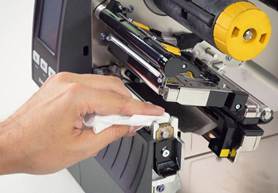
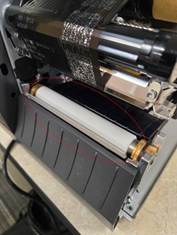
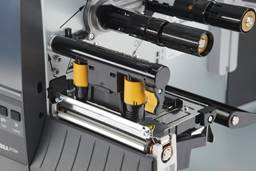
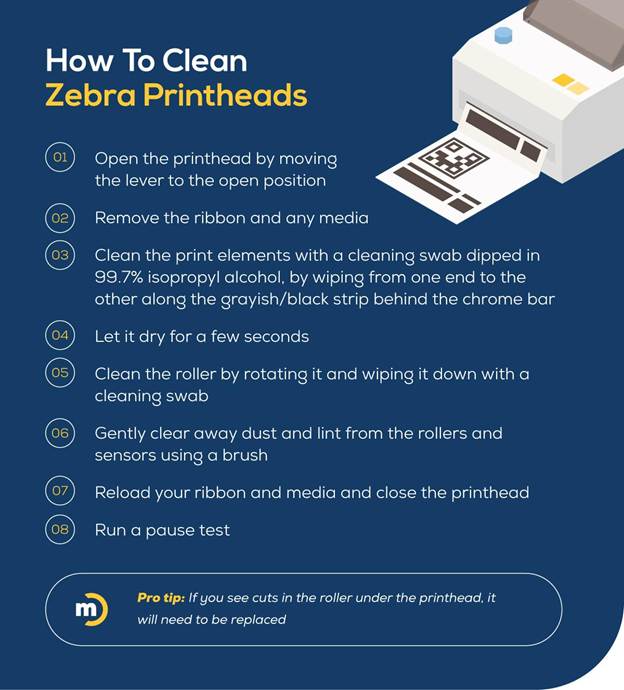
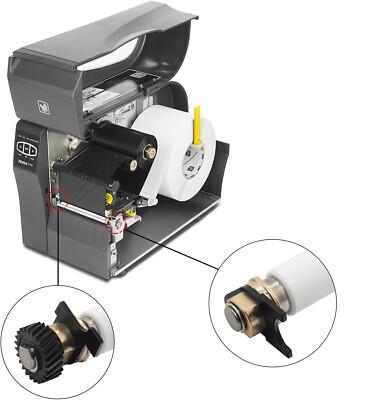
Cleaning procedure
- Open the media cover.
- Remove the ribbon if installed.
- Remove the media if necessary.
- Allow the printhead to cool.
- Clean the printhead's brown ceramic strip.
- Clean the platen roller while rotating it manually.
- Allow the alcohol to evaporate.
- Reload the media and ribbon.
- Close the printhead.
- Close the media cover.
- Press PAUSE if required.
- Test print again.
Zebra recommends a clean swab with 99.7% isopropyl alcohol as an alternative to its Preventive Maintenance Kit. The printhead should be allowed to cool before cleaning because it can become hot. (Zebra Docs)
Do not
- Scrape the printhead.
- Use a sharp object.
- Touch the printhead unnecessarily.
- Clean a hot printhead.
- Use aggressive chemicals.
Step 13 - If the Test Label Works, Check Windows
If the ZT231 prints correctly from its own control panel but does not print from your computer, the problem is probably outside the printer's basic printing mechanism.
Start with Windows.
Go to:
Settings → Bluetooth & devices → Printers & scanners
Select your Zebra ZT231.
Check:
- Is the correct printer selected?
- Is it showing Offline?
- Are there stuck print jobs?
- Is it paused?
- Is Windows sending the job to another printer?
Step 14 - Clear the Windows Print Queue
A stuck print job can prevent subsequent jobs from printing.
Open:
Settings → Bluetooth & devices → Printers & scanners → Zebra ZT231 → Open print queue
Cancel all pending jobs.
Then try printing again.
If the queue refuses to clear, restart the Print Spooler service.
Press:
Windows + R
Type:
services.msc
Find:
Print Spooler
Right-click it and select:
Restart
Then try printing again.
Step 15 - Check the Zebra Driver
A printer can appear correctly in Windows but still fail to print because of a driver or configuration problem.
Check that you are using the correct Zebra printer driver.
Zebra currently provides recommended Windows printer drivers and setup guidance for the ZT231 through its support page. (Zebra Technologies)
Zebra ZT231 Support & Downloads
Check the driver settings
Verify:
- Correct printer model
- Correct label width
- Correct label height
- Correct orientation
- Correct print method
- Correct darkness
- Correct print speed
- Correct media type
A mismatch between the label size configured in the driver and the actual label can produce incorrect positioning or apparently missing output.
Step 16 - Check USB Connection
If your ZT231 is connected through USB:
- Disconnect the USB cable.
- Wait a few seconds.
- Connect it again.
- Try another USB port.
- Avoid problematic USB hubs.
- Check whether Windows detects the printer correctly.
If Windows previously connected to the printer before the appropriate driver was installed, Zebra notes that the printer can appear as an unknown/unspecified device. Zebra recommends installing the driver before connecting the printer in a new setup. (Zebra Technologies)
Step 17 - Check Network Printing
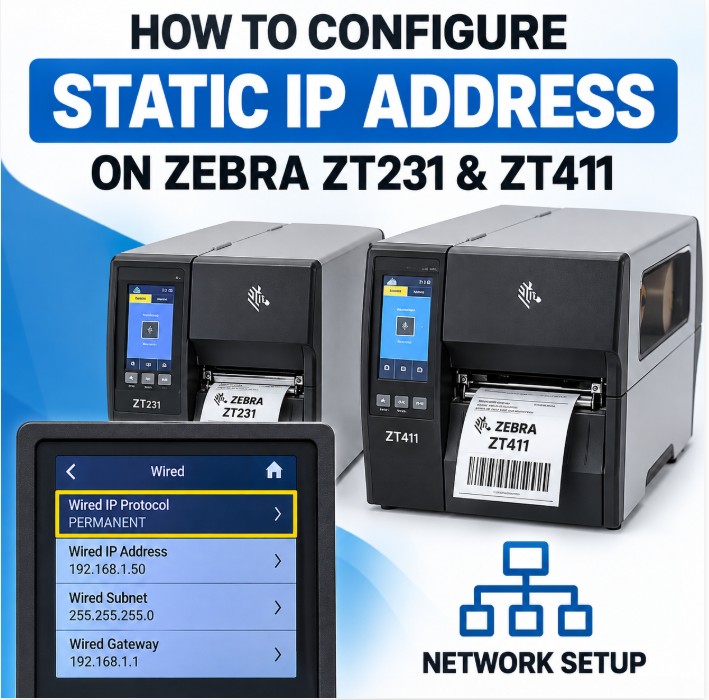
If your ZT231 is connected through Ethernet, check the printer's network configuration.
Verify:
- IP address
- Subnet mask
- Gateway
- Network cable
- Link/activity lights
- Windows printer port
- Printer IP address
First determine the printer's current IP address.
Then from the Windows computer, open Command Prompt and test:
ping PRINTER-IP
For example:
ping 192.168.1.50
If ping fails
Possible causes include:
- Wrong IP address
- Network cable problem
- Different subnet
- Network configuration problem
- Firewall/network restrictions
- Printer not connected to the network
If ping works but printing fails
Look at:
- Windows printer port
- Driver
- Print queue
- Port configuration
- Printing application
The ZT231 also provides network reset options through its menu if network configuration needs to be reset. (Zebra Docs)
Step 18 - Check Darkness and Print Speed
If the printer prints but the result is extremely light, dark, incomplete, or poor, check the print settings.
On the ZT231:
Menu → Print → Print Quality
Adjust:
- Darkness
- Print Speed
Zebra recommends using the lowest darkness that produces acceptable print quality. Excessive darkness can cause poor image quality, barcode-scanning problems, ribbon damage, and premature printhead wear. Slower print speeds generally improve print quality. (Zebra Docs)
Do not simply increase darkness to maximum.
Step 19 - If Labels Feed but Come Out Blank
This is a particularly useful diagnostic situation.
If the printer feeds the label normally but there is no visible print, check the following in order:
Thermal Transfer
Check:
- Ribbon installed?
- Correct ribbon direction?
- Ribbon coated side facing the label?
- Ribbon correctly routed?
- Print Type set to Thermal Transfer?
- Printhead making proper contact?
Direct Thermal
Check:
- Are the labels actually direct-thermal labels?
- Is Print Type set to Direct Thermal?
- Is darkness sufficient?
- Is the printhead clean?
- Is the printhead functioning?
If the printer still feeds completely blank labels after these checks, hardware inspection may be necessary.
Step 20 - If Only Part of the Label Prints
If some of the label prints but another area is completely blank, inspect:
- Printhead contamination
- Damaged printhead elements
- Ribbon wrinkles
- Printhead pressure
- Label/ribbon compatibility
- Darkness setting
Zebra notes that long tracks of missing print across multiple labels can indicate damaged print elements and may require service. (Zebra Docs)
Step 21 - If the Printer Skips Labels
If the ZT231 prints one label and skips another, or feeds several labels before stopping:
Check:
- Label type.
- Media sensor position.
- Label gaps.
- Media loading.
- Sensor cleanliness.
- Calibration.
Then run:
Menu → Print → Sensors → Manual Calibration
Zebra specifically recommends calibration for skipped labels and incorrect media detection. (Zebra Docs)
Step 22 - If the Label Position Is Wrong
If the printer prints, but the image is too high, too low, or moves from label to label:
Check:
- Label dimensions
- Media type
- Sensor position
- Media loading
- Calibration
- Platen roller cleanliness
- Printhead pressure
The ZT231 troubleshooting documentation identifies incorrect media settings, loading, sensor calibration, dirty platen roller, and printhead pressure as possible causes of registration and positioning problems. (Zebra Docs)
Step 23 - Test With a Simple Label
If you are printing from specialized software, don't immediately assume the printer is faulty.
Try a very simple test label.
The purpose is to separate:
Printer problem
from
Software/label-format problem
If the built-in printer test works but your application doesn't, investigate:
- Label dimensions
- Printer selection
- Driver
- ZPL
- Application settings
- Database/ERP/POS configuration
- Print permissions
- Network connection
ZT231 Troubleshooting Decision Tree
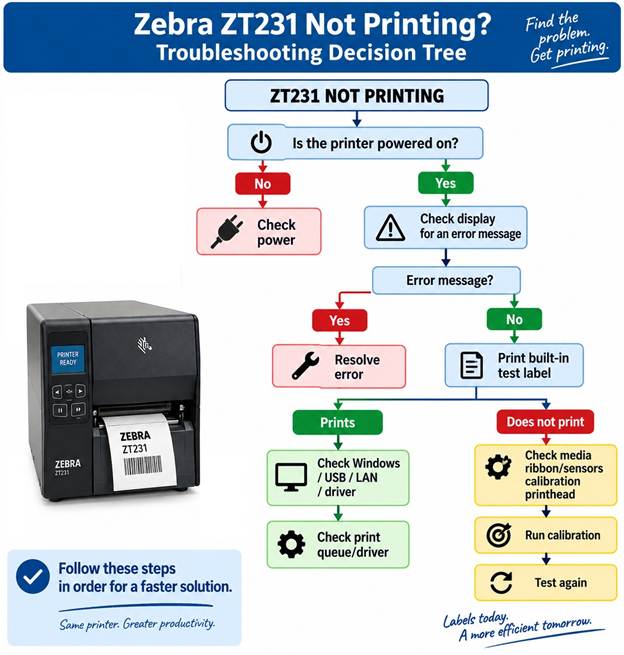
When Should You Suspect a Hardware Problem?
Consider professional service if:
- The printer cannot print its own test label.
- Calibration repeatedly fails.
- The printer cannot detect correctly loaded media.
- The printhead has damaged elements.
- There are permanent vertical missing lines.
- The platen roller is damaged.
- The printer repeatedly locks up.
- The printhead does not heat correctly.
- The printer shows persistent internal errors after power cycling.
Do not replace the printhead simply because the printer is not printing. First establish whether the problem occurs during the printer's internal test print or only when printing from Windows/software.
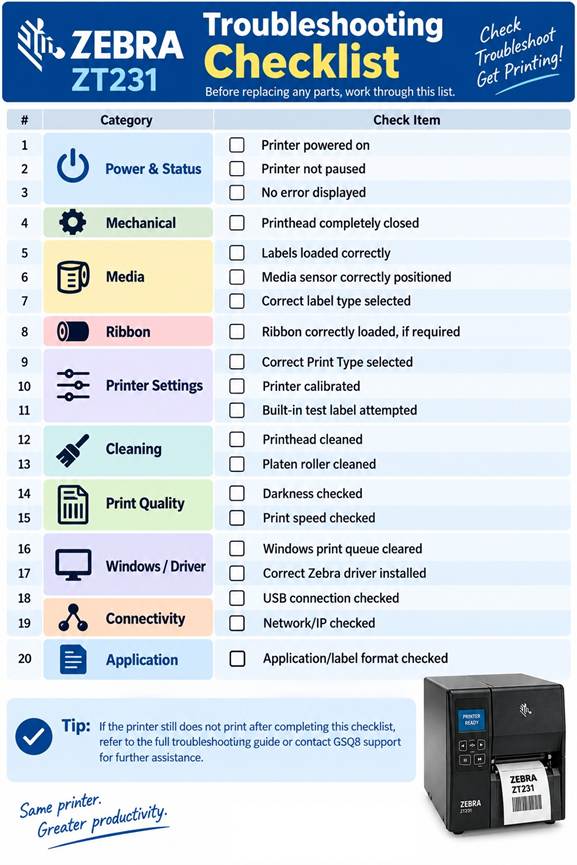
Final ZT231 Troubleshooting Checklist
Before replacing any parts, work through this list:
☐ Printer powered on
☐ Printer not paused
☐ No error displayed
☐ Printhead completely closed
☐ Labels loaded correctly
☐ Media sensor correctly positioned
☐ Correct label type selected
☐ Ribbon correctly loaded, if required
☐ Correct Print Type selected
☐ Printer calibrated
☐ Built-in test label attempted
☐ Printhead cleaned
☐ Platen roller cleaned
☐ Darkness checked
☐ Print speed checked
☐ Windows print queue cleared
☐ Correct Zebra driver installed
☐ USB connection checked
☐ Network/IP checked
☐ Application/label format checked
The Most Important Test
If you remember only one thing from this guide, remember this:
First determine whether the ZT231 can print its own test label.
If the ZT231 prints its own test label:
Focus on Windows, driver, USB/network connection, print queue, and printing software.
If the ZT231 cannot print its own test label:
Focus on media, ribbon, sensors, calibration, printhead, platen roller, printer settings, and hardware.
This simple separation can save a lot of unnecessary troubleshooting and prevent replacing working printer parts.
Official Zebra references
Zebra's ZT231 support documentation covers setup, media and ribbon loading, test printing, calibration, drivers, and troubleshooting. (Zebra Technologies)