Barcode Troubleshooting Guide – Why Your Barcode Won't Scan
Introduction
Barcodes are designed to make identification fast, accurate, and reliable. However, even a small printing or design problem can make a barcode difficult-or impossible-for a scanner to read.
Many people immediately assume that the scanner is faulty. In reality, the barcode itself is often the cause of the problem.
A barcode may look acceptable to the human eye but still fail because of poor contrast, incorrect sizing, missing quiet zones, damaged labels, unsuitable ribbon selection, or printing defects.
This guide explains the most common barcode problems, why they happen, and how to fix them.
Whether you use barcode labels in warehouses, retail stores, hospitals, manufacturing, or logistics, understanding these issues will help improve scanning performance and reduce costly errors.
How Barcode Scanners Read Barcodes
Before troubleshooting, it helps to understand how scanners work.
A barcode scanner shines light onto the barcode.
- White areas reflect light.
- Dark bars absorb light.
The scanner measures the reflected light and converts the pattern into numbers or characters.
If the scanner cannot clearly distinguish between dark bars and light spaces, it cannot decode the barcode.
Even small defects can prevent successful scanning.
Quick Troubleshooting Table
|
Problem |
Possible Cause |
Solution |
|
Barcode won't scan |
Low contrast |
Increase darkness or use a darker ribbon |
|
Scanner reads sometimes |
Dirty barcode |
Replace damaged label |
|
Only some scanners work |
Barcode too small |
Increase barcode size |
|
Scanner fails from certain angles |
Glossy material |
Use matte labels or adjust scanner angle |
|
Scanner says invalid barcode |
Wrong barcode symbology |
Verify encoding settings |
|
Works nearby only |
Barcode too dense |
Increase X-dimension |
|
Scanner cannot detect |
Missing quiet zone |
Leave blank margins |
|
Barcode prints blurry |
Worn printhead |
Clean or replace printhead |
|
Bars appear broken |
Dirty printhead |
Clean printer |
|
Barcode fades |
Wrong ribbon |
Use Wax-Resin or Resin ribbon |
Before Troubleshooting
Before changing printer settings, check these simple items.
✓ Is the scanner working?
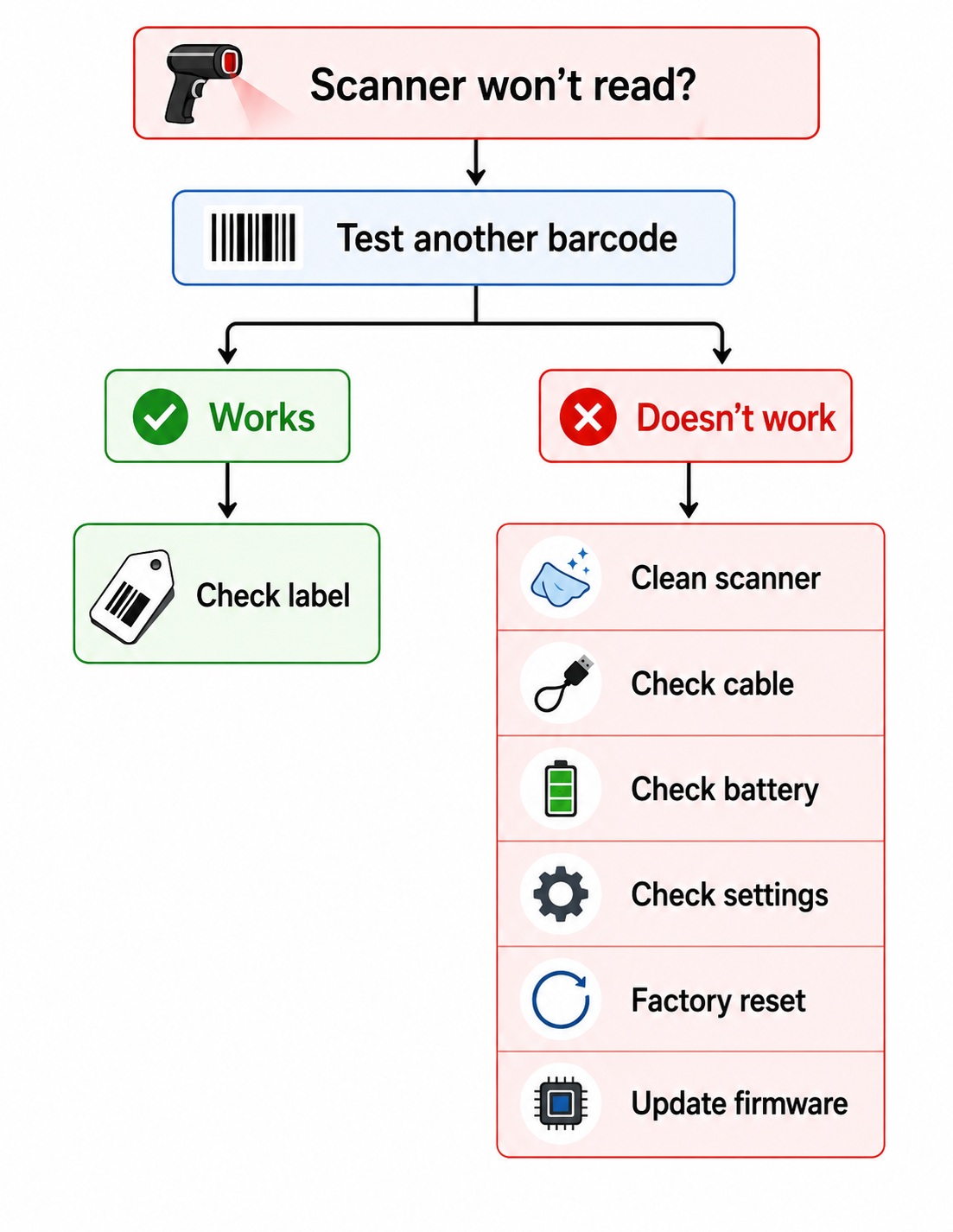
Test it with another known-good barcode.
If the scanner successfully reads another barcode, the problem is probably with the printed label.
✓ Is the barcode damaged?
Check for:
- scratches
- wrinkles
- dirt
- oil
- water
- torn labels
Physical damage often prevents successful scanning.
✓ Is the barcode correctly printed?
Look closely.
Do you see:
- broken bars?
- faded areas?
- missing sections?
- white lines inside black bars?
If yes, the printer may require cleaning or maintenance.
Problem 1 – Poor Print Contrast
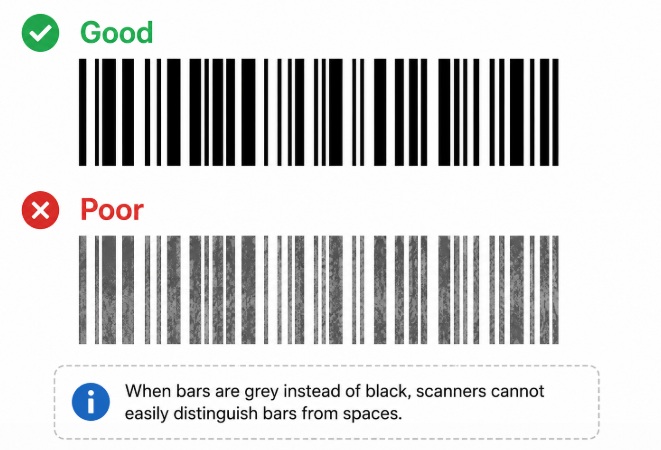
Poor contrast is one of the most common barcode failures.
Example:
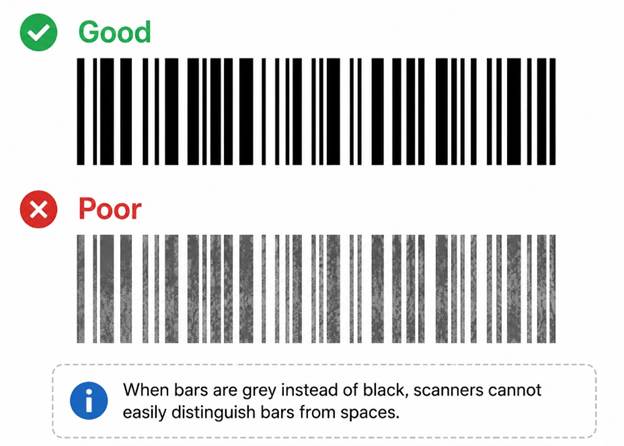
When bars are grey instead of black, scanners cannot easily distinguish bars from spaces.
Common causes include:
- print darkness too low
- poor ribbon quality
- worn ribbon
- unsuitable ribbon
- incorrect media settings
- old printhead
Solutions:
- Increase print darkness.
- Clean the printhead.
- Replace worn ribbons.
- Use premium ribbons.
- Replace worn printheads if necessary.
Problem 2 – Missing Quiet Zone
Every barcode requires empty space before the first bar and after the last bar.
This blank area is called the Quiet Zone.
Without it, scanners cannot determine where the barcode begins or ends.
Example:
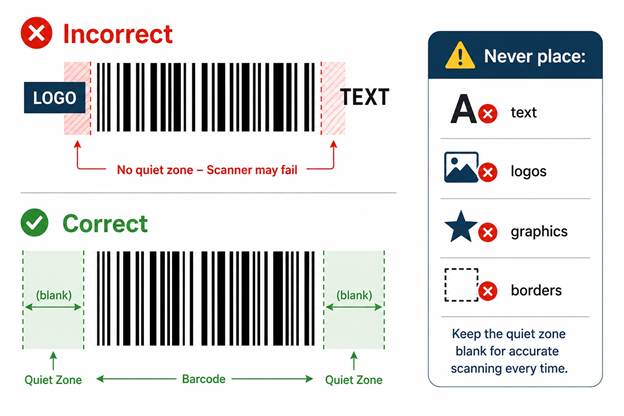
Never place:
- text
- logos
- graphics
- borders
inside the quiet zone.
Problem 3 – Barcode Is Too Small
One of the most common reasons for scanning failures is printing a barcode smaller than recommended.
A barcode that is too small has extremely narrow bars and spaces, making it difficult for many scanners to distinguish them accurately.
This issue is especially noticeable when using long data strings, high-density barcode symbologies, or low-resolution printers.
Common Symptoms
- Scanner only reads at a very close distance.
- Some scanners work while others do not.
- Older laser scanners fail completely.
- Scanning takes several attempts.
Causes
- Barcode scaled down too much.
- Too much information encoded into a small barcode.
- Wrong X-dimension (module width).
- Using 203 dpi printers for very dense barcodes.
Solutions
- Increase the barcode size.
- Reduce unnecessary encoded data.
- Use a higher DPI printer (300 or 600 dpi) for small labels.
- Follow the barcode standard's minimum X-dimension.
Tip: Making a barcode larger almost always improves readability.
Problem 4 – Wrong Ribbon Selection
For thermal transfer printing, ribbon selection has a major impact on barcode quality.
A poor ribbon can produce faded, patchy, or inconsistent bars that scanners struggle to decode.
Wax Ribbon
Suitable for:
- Paper labels
- Shipping labels
- Cartons
- General warehouse labels
Not recommended for:
- Synthetic labels
- Glossy materials
- Chemical exposure
Wax-Resin Ribbon
Suitable for:
- Premium paper
- Semi-gloss labels
- Some synthetic materials
Provides:
- Darker print
- Better scratch resistance
- Higher durability
Resin Ribbon
Recommended for:
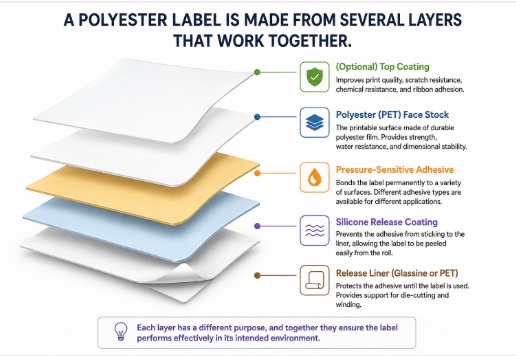
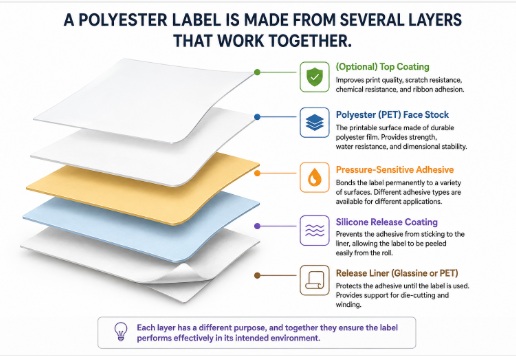
- Polyester (PET)
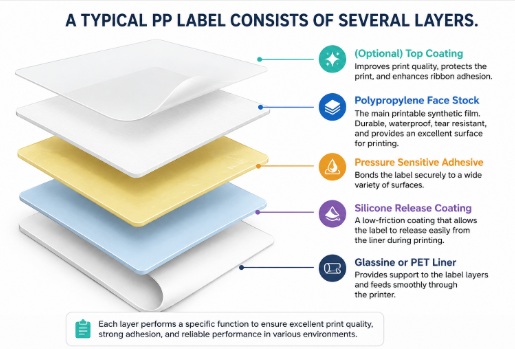
- Polypropylene (PP)
- Vinyl labels
- Chemical-resistant labels
Provides:
- Maximum darkness
- Excellent durability
- Heat resistance
- Solvent resistance
Common Symptoms
- Barcode looks grey.
- Printing scratches easily.
- Bars fade after handling.
- Scanner only reads occasionally.
Solution
Always match the ribbon type to the label material.
Using the correct ribbon dramatically improves barcode quality.
Problem 5 – Poor Label Material
Not every label is suitable for barcode printing.
Some materials reflect too much light, while others cannot hold sharp printed edges.
Examples include:
- Highly glossy labels
- Metallic labels
- Transparent labels
- Reflective labels
These materials can confuse certain scanners, especially laser scanners.
Better Choices
- Matte white paper
- Matte synthetic labels
- Top-coated barcode labels
These provide higher contrast and produce more reliable scans.
Problem 6 – Glossy Labels Cause Reflection
Even when printed correctly, glossy labels can reflect the scanner's light.
Instead of receiving a clear reflection from the white spaces, the scanner receives unwanted glare.
This can reduce scanning reliability.
Common Symptoms
- Scanner works only from certain angles.
- Scanner fails under bright lighting.
- Barcode scans indoors but not outdoors.
Solutions
- Use matte labels.
- Tilt the scanner slightly.
- Avoid direct sunlight.
- Avoid high-gloss finishes where possible.
Problem 7 – Curved Surfaces
Wrapping a barcode around a small bottle, cable, tube, or pipe changes the shape of the barcode.
Instead of remaining flat, the bars become curved.
Some scanners cannot correctly interpret these distorted bars.
Examples
- Small medicine bottles
- Cosmetic containers
- Electrical cables
- Laboratory tubes
- Cylindrical products
Solutions
- Print larger barcodes.
- Place the barcode vertically along the cylinder where appropriate.
- Avoid wrapping the barcode around the entire circumference.
- Use 2D barcodes for very small products.
Problem 8 – Damaged Labels
A scanner expects continuous bars and spaces.
Damage interrupts this pattern.
Even a small tear or scratch across several bars may prevent successful decoding.
Common Damage
- Torn labels
- Scratches
- Water damage
- Dirt
- Oil
- Wrinkles
- Creases
Solutions
- Replace damaged labels.
- Protect labels with laminate if required.
- Use synthetic materials in harsh environments.
- Keep labels clean during storage and handling.
Problem 9 – Dirty Scanner Window
Sometimes the barcode is perfectly printed.
The scanner is actually the problem.
Dust, fingerprints, grease, or scratches on the scanner window reduce the amount of reflected light reaching the sensor.
Symptoms
- Good barcodes fail.
- All labels scan poorly.
- Scanner works after repeated attempts.
Solution
Clean the scanner window using:
- Microfiber cloth
- Lens cleaning wipes
- Approved cleaning solution
Never use abrasive cleaners.
Quick Checklist
Before replacing equipment, check the following:
✔ Barcode is large enough
✔ Good print contrast
✔ Correct ribbon
✔ Correct label material
✔ Quiet zones present
✔ Label not damaged
✔ Scanner lens clean
✔ Proper lighting
✔ Barcode printed clearly
Problem 10 – Wrong Barcode Symbology
A barcode scanner can only decode barcode types (symbologies) that it has been configured to read.
For example, a scanner configured to read Code 128 may ignore Code 39, Codabar, or MSI unless those symbologies are enabled.
Likewise, some applications require a specific barcode type. Even if the scanner reads the barcode correctly, the software may reject it if it expects a different symbology.
Common Symptoms
- Scanner beeps but no data appears.
- Scanner ignores certain barcodes.
- Only some barcode types work.
- Barcode scans on one scanner but not another.
Solutions
- Confirm which barcode symbology your software requires.
- Enable the required symbologies in the scanner settings.
- Use the correct barcode type when generating labels.
- Reset the scanner to factory defaults if configuration is unknown.
Problem 11 – Incorrect Check Digit
Many barcode standards include a check digit, which helps detect data entry or printing errors.
The check digit is calculated mathematically from the barcode data. If it is missing or incorrect, the scanner will reject the barcode.
Barcode types that commonly use check digits include:
- EAN-13
- UPC-A
- ITF-14
- GS1 DataBar
Common Symptoms
- Scanner reports an invalid barcode.
- Software rejects scanned data.
- Barcode appears correct but never scans successfully.
Solutions
- Use barcode generation software that automatically calculates the check digit.
- Avoid manually editing encoded numbers.
- Verify the barcode before mass printing.
Problem 12 – Printer Calibration Issues
Thermal barcode printers must know exactly where each label begins and ends.
If the printer is not calibrated correctly, printing may shift, causing the barcode to be cut off or printed across the label gap.
Common Symptoms
- Barcode printed too high or too low.
- Barcode split across two labels.
- Printer skips labels.
- Printing starts in the wrong position.
Solutions
- Perform media calibration.
- Verify label size in the printer driver.
- Confirm the correct sensor type (Gap or Black Mark).
- Ensure the label dimensions match the printer configuration.
Tip: Calibration should be performed whenever you change label size, material, or sensor type.
Problem 13 – Dirty or Worn Printhead
The printhead is the most critical component in a thermal printer.
Dust, adhesive residue, or normal wear can prevent heating elements from printing correctly, resulting in missing or faded barcode bars.
Common Symptoms
- White vertical lines through the barcode.
- Missing bars.
- Uneven print density.
- Faded print despite increasing darkness.
Solutions
- Clean the printhead with approved cleaning swabs or isopropyl alcohol (IPA).
- Allow the printhead to dry before printing.
- Replace the printhead if damaged or excessively worn.
Problem 14 – Dirty Scanner Window
Even a perfectly printed barcode may fail if the scanner's reading window is dirty.
Dust, fingerprints, grease, adhesive residue, and scratches reduce the amount of light reaching the barcode sensor.
Common Symptoms
- All barcodes scan poorly.
- Scanner only works at very close range.
- Scanner sometimes reads after several attempts.
- Performance gradually becomes worse.
Solutions
- Clean the scanner window using a microfiber cloth.
- Use approved lens cleaner or isopropyl alcohol (IPA).
- Never use abrasive cleaners.
- Inspect the window for scratches.
Tip: A scratched scanner window may require replacement.
Problem 15 – Scanner Configuration
Many scanners allow hundreds of settings.
If the wrong options are enabled or disabled, the scanner may ignore perfectly good barcodes.
Examples include:
- Code 39 disabled
- Code 128 disabled
- EAN disabled
- UPC disabled
- QR Code disabled
- PDF417 disabled
Symptoms
- One barcode type scans.
- Another barcode type never scans.
Solution
Restore factory defaults or enable the required barcode symbology.
Problem 16 – Wrong Scanner for the Barcode
Not every scanner reads every barcode.
For example:
|
Scanner Type |
Reads |
|
Laser |
Linear (1D) only |
|
CCD |
Linear (1D) |
|
Linear Imager |
Linear (1D) |
|
Area Imager |
1D + QR + Data Matrix + PDF417 |
Trying to read a QR Code with an older laser scanner will never work.
Always verify the scanner supports your barcode type.
Problem 17 – Scanner Distance
Every scanner has a specified reading distance.
Scanning too close or too far away prevents proper focus.
Symptoms
- Barcode scans only at one specific distance.
- Moving closer makes scanning worse.
Solution
Move the scanner slowly toward or away from the barcode until it reaches its optimum reading distance.
Problem 18 – Scanner Angle
A scanner should not always point perfectly straight at glossy labels.
Reflection can bounce directly back into the scanner.
A slight angle often produces better results.
Good practice:
Approximately 10–20° off perpendicular.
This reduces glare.
Problem 19 – Ambient Lighting
Strong sunlight or very bright LED lighting can interfere with barcode scanners.
This is particularly noticeable with glossy labels.
Symptoms
- Works indoors.
- Fails outdoors.
- Works in shade.
- Fails under warehouse skylights.
Solution
- Reduce glare.
- Tilt the scanner.
- Use matte labels.
- Avoid direct sunlight.
Problem 20 – Scanner Cable Problems
For wired scanners, damaged cables can produce intermittent scanning problems.
Symptoms
- Scanner disconnects randomly.
- Scanner powers on and off.
- USB reconnect sound repeatedly plays.
- Scanner occasionally freezes.
Check
- USB connector
- RJ45 connector
- Coiled cable damage
- Bent pins
Replace damaged cables.
Problem 21 – Bluetooth Connection Issues
Wireless scanners may appear to have scanning problems when the real issue is communication.
Symptoms
- Scanner beeps.
- Nothing appears on the computer.
- Scanner disconnects frequently.
Check
- Battery level
- Bluetooth pairing
- USB receiver
- Distance
- Wireless interference
Problem 22 – Keyboard Layout Problems
The barcode is actually scanned correctly, but the wrong characters appear.
Example
Expected
ABC123
Received
ÀBC!23
The scanner may be configured for a different keyboard layout.
Examples include:
- English (US)
- English (UK)
- French
- German
- Arabic
Always configure the scanner to match the computer's keyboard layout.
Problem 23 – Prefixes and Suffixes
Many scanners automatically add characters before or after the barcode.
Common examples:
- Enter
- Tab
- Carriage Return (CR)
- Line Feed (LF)
If these are missing-or if the wrong suffix is configured, the software may not accept the scan.
Problem 24 – Low Battery (Wireless Scanners)
Low batteries reduce wireless performance.
Some scanners also reduce laser brightness or imaging performance to conserve power.
Symptoms include:
- Short reading distance
- Slow decoding
- Frequent disconnects
Charge or replace the battery.
Problem 25 – Barcode Resolution
Very small barcodes require sufficient printer resolution.
|
Printer Resolution |
Best For |
|
203 dpi |
Shipping labels |
|
300 dpi |
Product labels |
|
600 dpi |
Electronics, jewellery, PCB labels |
Printing tiny barcodes with a 203-dpi printer often results in merged bars and poor readability.
Problem 26 – Barcode Orientation
Some scanners perform better when the barcode is rotated.
Try:
- Horizontal
- Vertical
- 90°
- 180°
This is particularly useful for long Code 128 or Code 39 barcodes.
Problem 27 – Software Input Focus
Sometimes the scanner functions correctly, but the software is not ready to receive the data.
Examples:
- Wrong input field selected
- Login screen active
- Background application has focus
- Cursor not placed in the barcode field
Always verify the cursor is in the correct input field before scanning.
New Flowchart Section
Barcode Verification vs Validation
Many users confuse these two terms.
Barcode Validation
Validation checks whether the barcode contains valid data and follows the correct barcode standard.
Examples include:
- Correct barcode type
- Valid characters
- Correct check digit
- Proper data structure
Barcode Verification
Verification measures the print quality of the barcode according to ISO standards.
It evaluates factors such as:
- Print contrast
- Edge quality
- Bar width accuracy
- Modulation
- Quiet zones
- Defects
- Decodability
Verification requires a dedicated barcode verifier and is commonly used in manufacturing, healthcare, pharmaceuticals, and logistics.
Preventive Maintenance Checklist
Many barcode problems can be prevented through regular maintenance.
|
Maintenance Task |
Recommended Frequency |
|
Clean the printhead |
Every ribbon or label roll change |
|
Clean the platen roller |
Weekly or as required |
|
Clean the scanner window |
Weekly |
|
Check print darkness |
Monthly |
|
Inspect label quality |
Every new roll |
|
Verify printer calibration |
After changing media |
|
Replace worn ribbons |
As required |
|
Inspect printhead for damage |
Monthly |
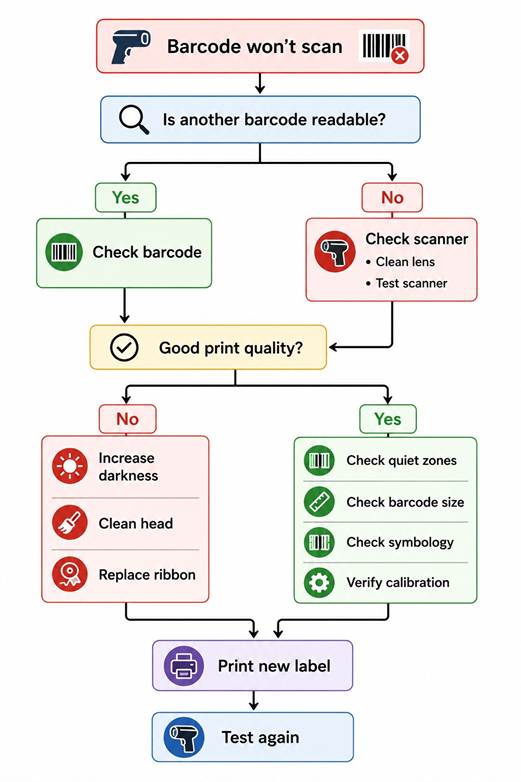
Barcode Troubleshooting Flowchart
Best Practices
To achieve reliable barcode scanning:
- Use high-quality labels.
- Choose the correct ribbon for the label material.
- Maintain high print contrast.
- Leave adequate quiet zones.
- Print at the correct size.
- Keep printers and scanners clean.
- Calibrate the printer after changing media.
- Avoid placing barcodes on highly curved surfaces.
- Protect labels from scratches, moisture, and chemicals.
- Verify critical barcodes before large production runs.
Frequently Asked Questions (FAQ)
Why does my barcode scan on my phone but not on a barcode scanner?
Smartphone cameras use advanced image processing and software algorithms that can compensate for poor print quality. Dedicated barcode scanners rely on clean, high-contrast bars and spaces and are generally less tolerant of printing defects.
Why does increasing print darkness improve scanning?
Darker bars absorb more light, creating greater contrast between the bars and the background. This makes it easier for scanners to distinguish the barcode pattern.
Can a damaged barcode still scan?
Sometimes. Minor damage may be tolerated depending on the barcode type and the location of the defect. However, significant scratches, missing bars, or torn labels often prevent successful decoding.
Which barcode material provides the best durability?
Polyester (PET) and Polypropylene (PP) labels printed with a suitable resin ribbon offer excellent resistance to water, chemicals, abrasion, and outdoor conditions.
Should I use a barcode verifier?
If your business operates in industries such as healthcare, pharmaceuticals, manufacturing, food production, or logistics where barcode quality is critical, a barcode verifier is strongly recommended to ensure compliance with ISO standards.
Conclusion
Most barcode scanning issues are caused by print quality, label material, ribbon selection, printer calibration, or barcode design-not by the scanner itself.
By understanding how barcodes are printed and read, you can quickly identify the root cause of scanning problems, improve reliability, reduce operational downtime, and minimize costly errors.
Following the troubleshooting steps and preventive maintenance practices in this guide will help ensure that your barcodes scan consistently the first time, every time.