Common Direct Thermal Label Printing Problems and How to Fix Them
Common Direct Thermal Label Printing Problems and How to Fix Them
Direct thermal labels are widely used in retail, logistics, warehousing, healthcare, courier services, and many other industries. They are popular because they do not require a ribbon, making them economical and easy to use. However, users occasionally face printing issues that can affect print quality, barcode readability, and printer performance.
The good news is that many of these problems can be resolved without calling technical support. Understanding the common causes and solutions can save time, reduce waste, and extend the life of your printer.
Understanding Direct Thermal Printing
Direct thermal printing works by applying heat directly to specially coated labels. The heat-sensitive coating turns black when heated by the printhead, creating text, graphics, and barcodes.
Since there is no ribbon involved, the print quality depends on the condition of the printhead, the quality of the labels, printer settings, and environmental factors.
1. Blank Labels Coming Out of the Printer
Possible Causes
- Labels loaded incorrectly.
- Printer configured for Thermal Transfer instead of Direct Thermal mode.
- Defective labels.
- Printhead not heating properly.
Solution
- Open the printer and verify that labels are loaded correctly.
- Check printer settings and ensure the print method is set to "Direct Thermal."
- Test with another roll of labels.
- Run the printer's self-test function.
Most blank label issues are caused by incorrect printer settings rather than hardware failure.
2. Light or Faded Printing
Possible Causes
- Low print darkness setting.
- Poor quality labels.
- Dirty printhead.
- Printing speed too high.
Solution
- Increase the darkness setting gradually.
- Reduce print speed.
- Clean the printhead using an approved cleaning pen or alcohol wipe.
- Use premium-grade direct thermal labels.
Higher-quality labels typically produce darker and sharper prints with lower heat requirements.
3. White Lines Running Through the Print
Possible Causes
- Dirt or adhesive buildup on the printhead.
- Damaged printhead elements.
Solution
- Turn off the printer.
- Clean the printhead thoroughly.
- Inspect for scratches or missing dots.
- Print a test label.
If the same white line appears in exactly the same position after cleaning, the printhead may have damaged heating elements.
4. Labels Not Feeding Correctly
Possible Causes
- Incorrect sensor calibration.
- Dirty label sensor.
- Wrong label size settings.
Solution
- Clean the media sensor.
- Perform media calibration.
- Verify the label dimensions in the printer driver.
- Ensure the sensor aligns with the label gap or black mark.
Most modern printers have an automatic calibration function that can solve feeding issues within minutes.
5. Printer Skipping Labels
Possible Causes
- Sensor cannot detect label gaps.
- Incorrect media type selected.
- Transparent labels being used without proper settings.
Solution
- Recalibrate the media sensor.
- Check sensor position.
- Select the correct media type.
- Clean the sensor window.
Transparent labels may require special sensors or black marks for accurate detection.
6. Labels Jamming Inside the Printer
Possible Causes
- Poor quality labels.
- Labels not loaded straight.
- Damaged label roll.
- Adhesive leakage.
Solution
- Remove all jammed material carefully.
- Reload labels evenly.
- Inspect the roll for damage.
- Use high-quality labels from reputable manufacturers.
Never pull labels aggressively as this may damage the printhead or sensors.
7. Barcodes Not Scanning
Possible Causes
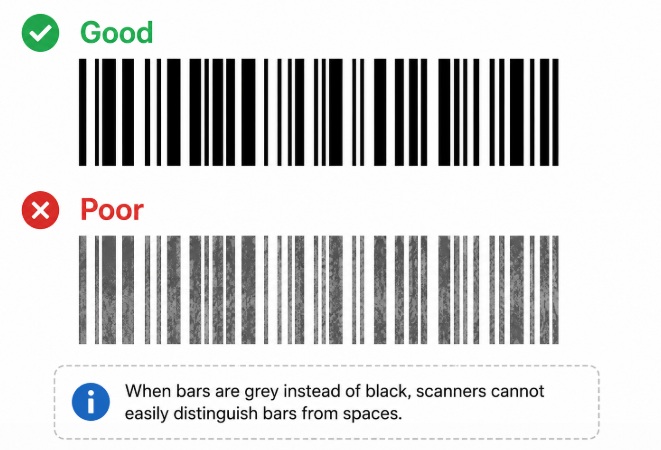
- Low print contrast.
- Incorrect barcode size.
- Smudged printing.
- Wrong barcode format.
Solution
- Increase print darkness.
- Reduce print speed.
- Verify barcode dimensions.
- Test using a barcode verifier or scanner.
A barcode may appear readable to the human eye but still fail scanning if print quality is poor.
8. Printer Printing Too Slowly
Possible Causes
- Large graphics.
- High darkness settings.
- Slow communication with the computer.
Solution
- Reduce unnecessary graphics.
- Lower darkness settings if possible.
- Use USB or Ethernet connections instead of unstable wireless connections.
- Update printer drivers.
9. Print Appears Smudged or Blurry
Possible Causes
- Excessive heat settings.
- Poor quality labels.
- Dirty platen roller.
Solution
- Reduce print darkness.
- Clean the platen roller.
- Use premium labels.
- Check printer speed settings.
Proper balance between darkness and speed is essential for clear output.
10. Labels Turning Black Before Use
Possible Causes
- Exposure to heat.
- Direct sunlight.
- Chemical contamination.
Solution
- Store labels in a cool, dry place.
- Avoid direct sunlight.
- Keep away from chemicals, solvents, and plasticizers.
- Follow the manufacturer's storage recommendations.
Direct thermal labels are sensitive by design and require proper storage conditions.
11. Printer Stops During Printing
Possible Causes
- Loose cable connection.
- Driver issue.
- Full printer memory.
- Communication interruption.
Solution
- Check USB, Ethernet, or serial cables.
- Restart the printer and computer.
- Clear the print queue.
- Update drivers and firmware.
Many intermittent printing problems are communication-related rather than printer-related.
12. Poor Print Quality After Replacing Labels
Possible Causes
- New labels require different heat settings.
- Lower-quality label material.
- Incorrect media configuration.
Solution
- Recalibrate the printer.
- Adjust darkness and speed settings.
- Compare with the previous label supplier.
- Test different settings until optimal quality is achieved.
Not all direct thermal labels are manufactured to the same standards.
Preventive Maintenance Tips
Regular maintenance can prevent most printing problems.
Clean the Printhead Frequently
Clean after every roll change or at least weekly in high-volume environments.
Use Quality Labels
Premium labels reduce printhead wear, improve barcode readability, and provide longer image life.
Keep the Printer Dust-Free
Dust and adhesive buildup are major causes of sensor and feeding issues.
Store Labels Properly
Maintain storage temperatures between 20°C and 25°C whenever possible.
Perform Regular Calibration
Recalibrate whenever changing label sizes or materials.
Conclusion
Most direct thermal printing problems can be solved quickly without professional assistance. Issues such as faded printing, skipped labels, feeding errors, and barcode scanning failures are usually caused by incorrect settings, dirty components, or poor-quality labels.
By cleaning the printer regularly, using high-quality direct thermal labels, performing sensor calibration, and maintaining proper printer settings, users can achieve reliable printing, longer printer life, and lower operating costs. A few minutes of preventive maintenance can prevent hours of downtime and significantly improve overall printing performance.