How to Use Windows 11 Task Manager to Find and Fix a Slow PC
How to Use Windows 11 Task Manager to Find and Fix a Slow PC
Is your Windows 11 computer running slowly, freezing occasionally, or taking too long to open programs?
Before reinstalling Windows or buying new hardware, there is one built-in tool you should check first: Task Manager.
Task Manager is more than just a way to close a frozen application. It can show you which applications and processes are using your CPU, memory, disk, GPU, and network resources. It also lets you manage startup applications and terminate programs that have stopped responding. (Microsoft Support)
This makes Task Manager one of the best starting points for diagnosing Windows performance problems.
In this tutorial, we'll show you how to use Task Manager step by step and, more importantly, what the numbers actually mean and what you should do about them.
How to Open Task Manager in Windows 11
There are several ways to open Task Manager.
Method 1 - Keyboard shortcut
Press:
Ctrl + Shift + Esc
This is usually the fastest method.
Method 2 - Start menu
Right-click the Start button and select:
Task Manager
You can also search for Task Manager from the Windows Start menu. (Microsoft Support)
Understanding the Task Manager
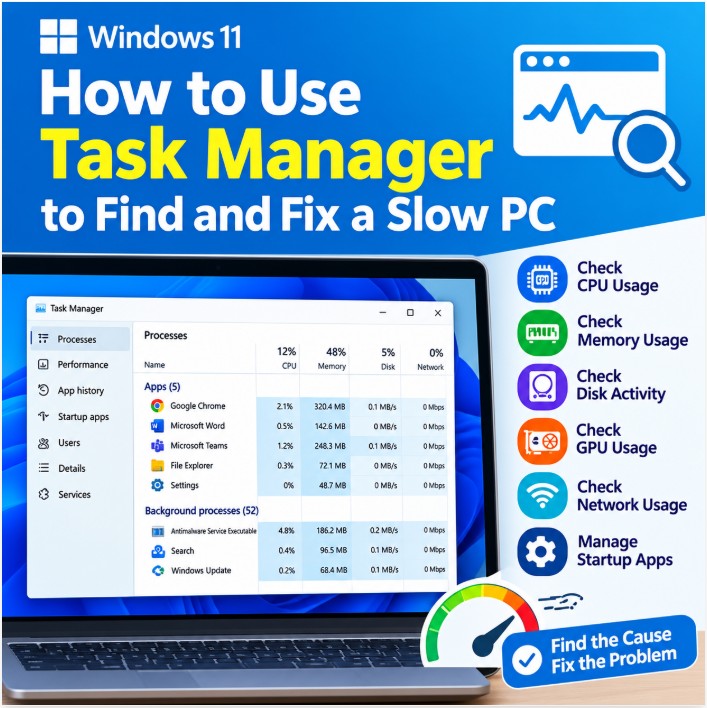
When Task Manager opens, you will see several sections, including:
- Processes
- Performance
- App history
- Startup apps
- Users
- Details
- Services
For troubleshooting a slow computer, the most important areas are:
Processes → Performance → Startup apps
Let's look at each one.
Step 1: Start With the Processes Tab
Open:
Task Manager → Processes
This is where you can see what is currently running and how much of your computer's resources each process is using.
You will normally see columns such as:
- CPU
- Memory
- Disk
- Network
- GPU
You can click any column heading to sort the list.
For example, click CPU to find the processes currently using the most processor resources.
Click Memory to find applications consuming the most RAM.
Click Disk to find processes generating the most disk activity.
This is often the fastest way to identify what is making a computer slow.
Step 2: Check CPU Usage
CPU stands for Central Processing Unit. It is essentially the main processor that performs calculations and runs programs.
If your computer feels slow, click the CPU column and look at the processes near the top.
You may find:
- A web browser
- An antivirus scan
- Windows Update
- A software installer
- Video-conferencing software
- A large application
- A background process
Is high CPU usage always a problem?
No.
A process may temporarily use a large amount of CPU while performing a task.
For example, CPU usage may increase when:
- Opening a large application
- Installing software
- Compressing files
- Rendering video
- Running an antivirus scan
- Installing Windows updates
The important question is:
Does the high usage continue when the computer should be idle?
If one application continues consuming a large amount of CPU for an extended period without an obvious reason, investigate that application.
Step 3: Check Memory (RAM) Usage
The Memory column shows how much RAM is being used.
RAM is temporary working memory used by Windows and applications.
High memory usage can make a computer feel slow because Windows may need to move some data between RAM and storage.
This becomes particularly noticeable when you have many applications open simultaneously.
For example:
- Chrome or Edge with many tabs
- Microsoft Word
- Excel
- Outlook
- Teams
- PDF software
- Accounting applications
- Antivirus software
How to investigate
Click the Memory column to sort applications by RAM usage.
Look for applications using unusually large amounts of memory.
If closing an application immediately improves responsiveness, that application may be contributing to the problem.
A common mistake
Don't assume that a high memory percentage automatically means something is wrong.
Windows intentionally uses available memory to improve performance.
The important question is whether the system is actually struggling-for example, applications becoming unresponsive, excessive disk activity, or frequent slowdowns.
Step 4: Check Disk Usage
The Disk column is especially important on older computers.
If Disk usage is repeatedly very high, Windows may feel extremely slow even when CPU usage is relatively low.
Possible causes include:
- Windows Update
- Antivirus scanning
- Search indexing
- Large file transfers
- Cloud synchronization
- Application activity
- Low free storage
- A slow HDD
- Storage-drive problems
Sort the Processes list by Disk and see which processes are generating the activity.
Then go to:
Task Manager → Performance → Disk
Here you can see more information about the storage device.
HDD vs SSD: Why It Matters
If your computer still uses a traditional mechanical HDD, disk activity can become a major performance bottleneck.
An SSD is substantially faster for everyday operations such as:
- Starting Windows
- Opening applications
- Loading files
- Installing updates
- Searching files
- Multitasking
So if an older computer constantly shows heavy disk activity, don't automatically blame Windows.
The storage hardware itself may be the limiting factor.
Microsoft also notes that older hardware may not see significant performance improvements from software optimization alone. (Microsoft Support)
Step 5: Check GPU Usage
If the computer becomes slow while:
- Playing videos
- Editing photos
- Editing video
- Running CAD software
- Playing games
- Using graphics-intensive applications
check the GPU section.
Go to:
Task Manager → Performance → GPU
You can also check the Processes tab to see which applications are using the GPU.
High GPU usage is not necessarily a problem when you are intentionally running a graphics-intensive application.
The question is whether GPU usage remains unusually high when the computer is supposed to be idle.
Step 6: Check Network Usage
Task Manager can also show network activity.
If your internet connection seems slow, check:
Task Manager → Processes → Network
A cloud-storage application, Windows Update, browser, or another program may be transferring a large amount of data.
This does not necessarily mean your internet connection is faulty.
The computer itself may simply be using the connection heavily.
Step 7: Find a Frozen or Unresponsive Application
One of Task Manager's most useful features is End task.
Suppose an application has stopped responding.
Instead of restarting the entire computer:
- Open Task Manager.
- Go to Processes.
- Select the unresponsive application.
- Click End task.
Windows can terminate the selected application. (Microsoft Support)
Important warning
Ending a task can cause unsaved work to be lost.
Before using End task, give the application a little time if it is performing a legitimate operation such as opening a large file or processing data.
Do not randomly terminate unfamiliar Windows processes.
Step 8: Don't End Every Process Using High CPU
This is an important troubleshooting rule.
You may see a Windows process using CPU or disk and assume it should be stopped.
That's not necessarily true.
Windows has many background processes that are required for:
- System operation
- Security
- Updates
- Networking
- Hardware
- Services
- User-interface functions
If you don't know what a process does, don't terminate it simply because its CPU or memory usage is high.
First determine what the process belongs to and why it is using resources.
Step 9: Use the Performance Tab
Now select:
Task Manager → Performance
This gives you a real-time overview of the major hardware resources.
You'll normally see sections for:
- CPU
- Memory
- Disk
- Wi-Fi or Ethernet
- GPU
Microsoft describes Task Manager's Performance section as providing a real-time overview of system resources including CPU, memory, disk, network, and GPU activity. (Microsoft Support)
This is extremely useful because it allows you to identify the type of bottleneck.
How to Identify the Bottleneck
Think of your computer as a chain.
If one component is constantly overloaded, that component can become the bottleneck.
CPU constantly high
Possible causes:
- Heavy application
- Background process
- Windows update
- Antivirus activity
- Malware
- Insufficient processing capacity
Memory constantly high
Possible causes:
- Too many applications
- Too many browser tabs
- Memory-heavy software
- Insufficient RAM
- Application memory leak
Disk constantly high
Possible causes:
- HDD limitation
- Windows background activity
- Antivirus scanning
- Search indexing
- Large file operations
- Storage problems
GPU constantly high
Possible causes:
- Graphics-heavy software
- Video processing
- Games
- Browser graphics acceleration
- Driver or application problems
Network constantly busy
Possible causes:
- Cloud synchronization
- Windows Update
- Large downloads
- Video streaming
- File transfers
- Another application using the connection
Step 10: Manage Startup Applications
A computer that takes a long time to become usable after signing in may have too many startup applications.
Open:
Task Manager → Startup apps
Here you can see applications configured to launch automatically when you sign in.
Windows also provides a Startup impact indication for these applications. Microsoft identifies startup impact levels such as Low, Medium, and High based on the application's measured CPU and disk activity during startup. (Microsoft Support)
How to disable an unnecessary startup application
- Open Task Manager.
- Select Startup apps.
- Select an application you don't need to start automatically.
- Click Disable.
This prevents the application from launching automatically when you sign in. (Microsoft Support)
What should you disable?
Consider applications that you rarely need immediately after Windows starts.
Examples may include:
- Chat applications
- Meeting software
- Game launchers
- Update utilities
- Manufacturer utilities
- Applications you use only occasionally
What should you NOT disable?
Be careful with:
- Security software
- Hardware-related utilities
- Touchpad or keyboard utilities
- Important business software
- Drivers and system components
If you don't know what an item does, research it before disabling it.
Step 11: Check Whether the Problem Happens After Startup
Here's a simple test.
Test 1 - Immediately after startup
Restart the computer.
Wait for Windows to finish loading.
Open Task Manager.
Check CPU, Memory, and Disk usage.
Test 2 - Wait a few minutes
Don't open any applications.
Wait several minutes and watch the graphs.
If usage gradually decreases, Windows may simply have been completing background tasks.
If one process continues consuming significant resources, investigate that process.
Test 3 - Open your normal applications
Now open your normal work applications one at a time.
Watch Task Manager.
If the computer becomes slow immediately after launching one particular application, you've potentially identified the source.
This approach is much more useful than simply saying:
“Windows is slow.”
You are trying to determine:
“What changes when Windows becomes slow?”
Step 12: Use Task Manager After a Windows Update
If your computer became slow immediately after a Windows update, Task Manager can help determine what is happening.
Look for:
- Windows Update activity
- High disk usage
- High CPU usage
- Antivirus scanning
- Search indexing
- Applications running in the background
Don't automatically assume that the update itself is permanently slowing the computer.
Windows may be performing background operations after the update.
Microsoft recommends checking resource usage and heavy processes when troubleshooting poor PC performance. (Microsoft Support)
Step 13: Check Whether the Problem Is Hardware
Task Manager can help you decide whether the problem might be hardware-related.
For example:
CPU
If CPU usage reaches very high levels during your normal workload, your processor may be the limiting component.
RAM
If memory usage is consistently high when you are doing normal work, additional RAM may help-provided the computer supports a memory upgrade.
Disk
If disk usage is repeatedly high and the computer uses an old HDD, moving to an SSD may provide a significant practical improvement.
Age of the computer
Older hardware may simply have reached its practical performance limit.
Microsoft notes that consistently high CPU, memory, or disk usage in Task Manager can be one sign that a PC's performance is declining. (Microsoft Support)
Step 14: Check for Malware
Unusual CPU, memory, disk, or network activity can sometimes be caused by unwanted software or malware.
If you see a suspicious process consuming resources, don't immediately delete or terminate random files.
Instead, run a security scan.
Microsoft recommends using Windows Security → Virus & threat protection → Quick scan when investigating performance problems that may be related to malware. (Microsoft Support)
Step 15: What If Task Manager Shows Nothing Obviously Wrong?
This is also useful information.
Suppose your computer feels slow but Task Manager shows:
- CPU is normal
- Memory is reasonable
- Disk activity is low
- GPU is normal
- No application is consuming excessive resources
The problem may be somewhere else.
Consider checking:
- Available storage space
- Windows updates
- Drivers
- Startup applications
- Storage-drive health
- Windows system files
- Network connection
- Application-specific problems
- Hardware temperature
Task Manager is a diagnostic starting point, not a complete PC repair tool.
A Simple 5-Minute Task Manager Test
If someone tells you:
“My Windows 11 computer is slow.”
Try this before changing anything.
Minute 1
Open:
Ctrl + Shift + Esc
Go to Processes.
Minute 2
Sort by CPU.
Identify the processes using the most CPU.
Minute 3
Sort by Memory.
Look for unusually high memory usage.
Minute 4
Sort by Disk.
Check whether one process is generating heavy disk activity.
Minute 5
Go to:
Performance
Check the CPU, Memory, Disk, and GPU graphs.
Then ask:
Which resource is actually under pressure?
That answer gives you a much better starting point for troubleshooting.
Task Manager Troubleshooting Cheat Sheet
|
What you see |
What to investigate |
|
CPU constantly high |
Heavy application, background process, malware, updates |
|
Memory constantly high |
Too many applications, browser tabs, insufficient RAM |
|
Disk constantly high |
HDD, Windows activity, antivirus, indexing, storage issue |
|
GPU constantly high |
Graphics application, video processing, games, driver |
|
Network constantly high |
Downloads, cloud sync, updates, streaming |
|
One application frozen |
End task and restart the application |
|
Slow startup |
Review Startup apps |
|
Slow only with one program |
Investigate that application |
|
Slow immediately after update |
Check Windows/background activity |
|
Everything looks normal |
Check storage, drivers, hardware and Windows health |
When Should You Upgrade the Computer?
Don't upgrade hardware simply because Task Manager shows a high number once.
Look for a consistent pattern during your normal workload.
For example, if you regularly have several business applications and browser tabs open and memory is consistently near capacity, additional RAM may be worth considering.
If the computer uses an old HDD and disk activity is frequently the bottleneck, an SSD upgrade may make more sense.
If CPU usage is consistently high during your normal workload and the processor is already several generations old, a newer computer may be more practical.
The goal is to identify the bottleneck first.
Don't buy an upgrade until you know what is actually limiting the computer.
Final Takeaway
Task Manager is one of the most useful tools built into Windows 11 for diagnosing a slow PC.
Instead of guessing, use it to answer four basic questions:
What is using my CPU?
What is using my memory?
What is using my disk?
Which applications start automatically?
Once you know the answer, the solution becomes much easier to identify.
A slow computer may need nothing more than closing a problematic application or disabling unnecessary startup software. In other cases, Task Manager may reveal that the real limitation is RAM, an aging HDD, CPU capacity, or another hardware issue.
The most important rule is simple:
Don't try to fix a slow PC until you know what is making it slow.
Task Manager helps you find that starting point.