What Causes the Blue Screen of Death (BSOD) on Windows 11
Troubleshooting Guide
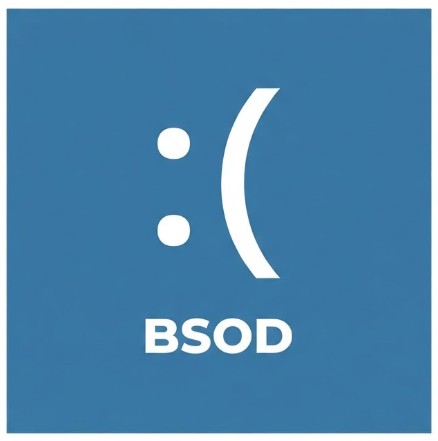
Encountering a sudden Blue Screen of Death (BSOD)-officially known as a stop error-on Windows 11 can be jarring. Your screen turns blue, a QR code appears alongside a sad face, and your PC abruptly restarts. Understanding what triggers these critical errors is the first step toward diagnosing the root cause and restoring system stability.
Common Causes of Windows 11 BSODs
- Faulty or Incompatible Device Drivers: Outdated, corrupted, or poorly written drivers (especially for graphics cards, network adapters, and storage controllers) are the leading cause of kernel-level crashes.
- Failing or Unstable Hardware: Defective RAM sticks, overheating CPUs, failing hard drives/SSDs, or poorly seated components frequently trigger hardware-fault stop codes.
- Corrupted System Files: Interrupted updates, sudden power losses, or bad sectors can damage core Windows system files, causing the kernel to panic.
- Aggressive Third-Party Antivirus Software: Low-level security programs that hook deeply into the Windows kernel can sometimes conflict with OS updates or other system components.
- Defective Windows Updates: Occasionally, a flawed cumulative update or preview patch introduces bugs that destabilize specific hardware configurations.
Essential Troubleshooting Tips to Fix BSOD Errors
When your PC encounters a stop error, use this step-by-step approach to identify the culprit and fix it:
1. Note the Stop Code and Error Name
Every BSOD displays a specific stop code (e.g., MEMORY_MANAGEMENT, DRIVER_IRQL_NOT_LESS_OR_EQUAL, or CRITICAL_PROCESS_DIED). Jotting down this code or scanning the QR code points you directly to the failing subsystem.
2. Boot into Safe Mode
If your PC is stuck in a crash loop, boot into Safe Mode to load only essential drivers:
- Interrupt the boot process three times consecutively by holding the physical power button to trigger the Automatic Repair environment.
- Go to Troubleshoot > Advanced options > Startup Settings and click Restart.
- Press 4 or F4 to enable Safe Mode.
3. Update or Roll Back Drivers
If a crash started right after installing a new hardware component or software update:
- Open Device Manager, locate the flagged device (often marked with a yellow exclamation icon), right-click it, and select Update driver.
- If an update caused it, select Properties > Driver tab > Roll Back Driver to revert to the previous working state.
4. Run Hardware and System Diagnostics
Check your system integrity from an Administrator Command Prompt:
- Scan for corrupted files: Run sfc /scannow followed by DISM /Online /Cleanup-Image /RestoreHealth.
- Test RAM memory: Type Windows Memory Diagnostic in the Start menu search bar and run the standard diagnostic tool to check for faulty memory modules.
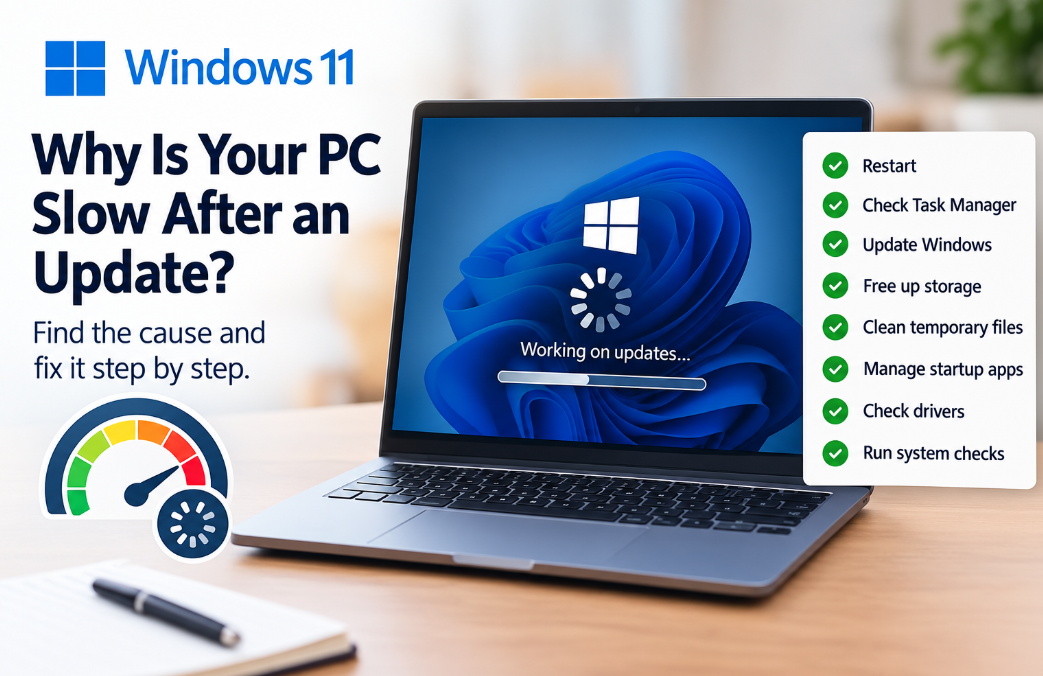
5. Uninstall Recent Windows Updates
If the BSOD began immediately following a patch installation, navigate to Settings > Windows Update > Update history > Uninstall updates, and remove the most recent package causing instability.