Label Printer Troubleshooting Guide
Common Problems, Expert Tips & Solutions
Thermal label printers are among the most reliable printing devices used in retail, logistics, healthcare, manufacturing, warehousing, laboratories, and offices. They produce high-quality labels quickly while requiring very little maintenance. However, even the most reliable barcode printer can occasionally experience printing problems.
The good news is that most label printer issues are not caused by hardware failure. Problems such as blank labels, faded printing, skipped labels, ribbon wrinkles, media detection errors, or communication failures are usually caused by incorrect settings, improper media loading, poor-quality consumables, or a lack of routine maintenance.
This comprehensive troubleshooting guide explains the most common label printer problems, their likely causes, and practical solutions. Whether you use a Zebra, Honeywell, TSC, Brother, Epson, SATO, GoDEX, Citizen, Bixolon, Toshiba TEC, or another thermal printer, the troubleshooting methods described here apply to nearly all Direct Thermal and Thermal Transfer label printers.
Did You Know?
More than 80% of label printer problems are not caused by faulty hardware. Most issues can be resolved by checking the printer settings, cleaning the printhead, recalibrating the media sensor, or correctly loading labels and ribbons before replacing any parts.
Quick Troubleshooting Table
|
Problem |
Most Likely Cause |
First Thing to Try |
|
Blank labels |
Wrong print mode or labels loaded upside down |
Check the print method and reload the labels correctly |
|
Printer displays Media Out |
Printer cannot detect the label gap or black mark |
Perform media calibration |
|
Labels skip or feed incorrectly |
Wrong label dimensions or sensor calibration |
Calibrate the media |
|
White vertical line on every label |
Damaged printhead |
Clean the printhead and inspect for damage |
|
Faded printing |
Dirty printhead or low darkness setting |
Clean the printhead and increase print darkness |
|
Ribbon wrinkles |
Incorrect ribbon path or printhead pressure |
Reload the ribbon and clean the platen roller |
|
Ribbon breaks |
Excessive print darkness or speed |
Reduce print darkness and print speed |
|
Barcode will not scan |
Poor print quality or incorrect barcode size |
Increase print quality and verify barcode dimensions |
|
Printer Offline |
Driver or communication issue |
Restart the printer and verify the connection |
|
Communication error |
USB, Serial, Ethernet or network problem |
Check cables, drivers and network settings |
Tip: Always start with the simplest solution before assuming a hardware failure. Many printer issues can be resolved in just a few minutes by checking the media, calibration, and printer settings.
Before You Begin Troubleshooting
Before investigating more complex problems, perform these simple checks.
✔ Printer is powered on
✔ No error LEDs are flashing
✔ Labels are loaded correctly
✔ Ribbon is installed correctly (Thermal Transfer printers only)
✔ The correct printer driver is installed
✔ USB, Serial, Ethernet or Wi-Fi connection is working
✔ The correct printer is selected in your software
✔ Labels and ribbons are compatible with your printer
Checking these items first can often solve the problem without any further troubleshooting.
Important Safety Note
Never clean a hot thermal printhead.
Allow the printhead to cool for at least one minute before cleaning it with 99% Isopropyl Alcohol or a thermal printhead cleaning pen.
Cleaning a hot printhead may damage its protective coating or cause the alcohol to evaporate before it removes dirt and adhesive residue.
Understanding Printer LED Indicators
Most thermal printers use LED indicators to help identify common faults. Although colours and flashing patterns vary between manufacturers, the table below shows the most common meanings.
|
LED Status |
Typical Meaning |
|
Solid Green |
Printer ready |
|
Flashing Green |
Printing or processing data |
|
Solid Red |
Printer error |
|
Flashing Red |
Media or ribbon error |
|
Alternating Red / Green |
Calibration or startup process |
Note: Always refer to your printer's user manual, as LED patterns differ between manufacturers.
Environmental Conditions Matter
The environment in which your printer operates can significantly affect print quality and reliability.
Problems are more likely to occur in environments with:
- High humidity
- Excessive heat
- Direct sunlight
- Cold warehouses
- Dusty workplaces
Environmental conditions can affect:
- Label adhesive
- Ribbon performance
- Print quality
- Label curling
- Media feeding
- Barcode readability
Whenever possible, store labels and ribbons in a clean, dry environment at room temperature.
Never Do These
Avoid these common mistakes, as they can permanently damage your printer.
❌ Scratch the printhead with metal tools
❌ Clean the printhead with acetone or strong solvents
❌ Touch the heating elements with your fingers
❌ Pull labels backwards through the printer
❌ Blow high-pressure compressed air directly into sensors
❌ Force the ribbon underneath the printhead
❌ Use labels or ribbons that are incompatible with your printer
Following these simple precautions will help extend the life of your printer and reduce unnecessary repairs.
Common Label Printer Problems
1. Blank Labels Printing
One of the most common problems is when the printer feeds labels normally but nothing appears on the label.
Possible Causes
- Labels loaded upside down
- Wrong label type
- Ribbon installed incorrectly
- Print darkness too low
- Incorrect print method selected
How to Fix It
For Direct Thermal Printers
Ensure the heat-sensitive side of the label is facing the printhead.
A quick way to verify this is by performing the scratch test:
- Take one label from the roll.
- Scratch the surface firmly with your fingernail.
- If the scratched area turns black, that is the printable side.
Reload the labels if necessary.
For Thermal Transfer Printers
Verify that:
- The ribbon passes underneath the printhead.
- The ribbon and labels are compatible.
- The printer is configured for Thermal Transfer printing.
- The ribbon has not reached the end of the roll.
2. Printer Displays "Media Out"
A Media Out error means the printer cannot detect the labels, even though media is installed.
Common Causes
- Incorrect media sensor position
- Media calibration lost
- Dirty sensor
- Labels loaded incorrectly
- Wrong label size configured
Solutions
- Reload the label roll.
- Clean the media sensor.
- Perform media calibration.
- Verify the label size in the printer driver.
- Ensure the sensor is aligned with the label gap or black mark.
Many Zebra printers allow manual calibration by holding the Feed button during startup.
3. Poor Print Quality
Poor print quality can appear as:
- Faded text
- Missing dots
- Uneven printing
- Light barcodes
- Blurry graphics
Common Causes
- Dirty printhead
- Low print darkness
- Worn printhead
- Low-quality ribbon
- Poor-quality labels
- Worn platen roller
Solution
Clean the printhead using:
- 99% Isopropyl Alcohol
- A thermal printhead cleaning pen
- A lint-free cloth
Never use sharp tools or abrasive materials.
If necessary:
- Increase print darkness.
- Reduce print speed.
- Replace low-quality labels or ribbons.
- Inspect the platen roller for wear.
4. Vertical White Lines on Every Label
If every printed label contains the same vertical white line in exactly the same position, the printhead is usually damaged.
Possible Causes
- Burnt heating elements
- Adhesive contamination
- Scratched printhead
- Worn printhead
Solution
First, clean the printhead thoroughly.
If the white line remains in exactly the same position after cleaning, the printhead has likely developed permanent dead dots and should be replaced.
5. Labels Skip or Feed Incorrectly
Common symptoms include:
- Printing across two labels
- Extra blank labels
- Half-printed labels
- Incorrect label positioning
Causes
- Incorrect label dimensions
- Sensor calibration lost
- Wrong media sensor type
- Incorrect gap or black mark settings
Solution
Perform both:
- Media calibration
- Sensor calibration
Then verify:
- Label height
- Gap size
- Black mark settings
- Printer driver configuration
Incorrect media settings are one of the most common causes of label skipping.
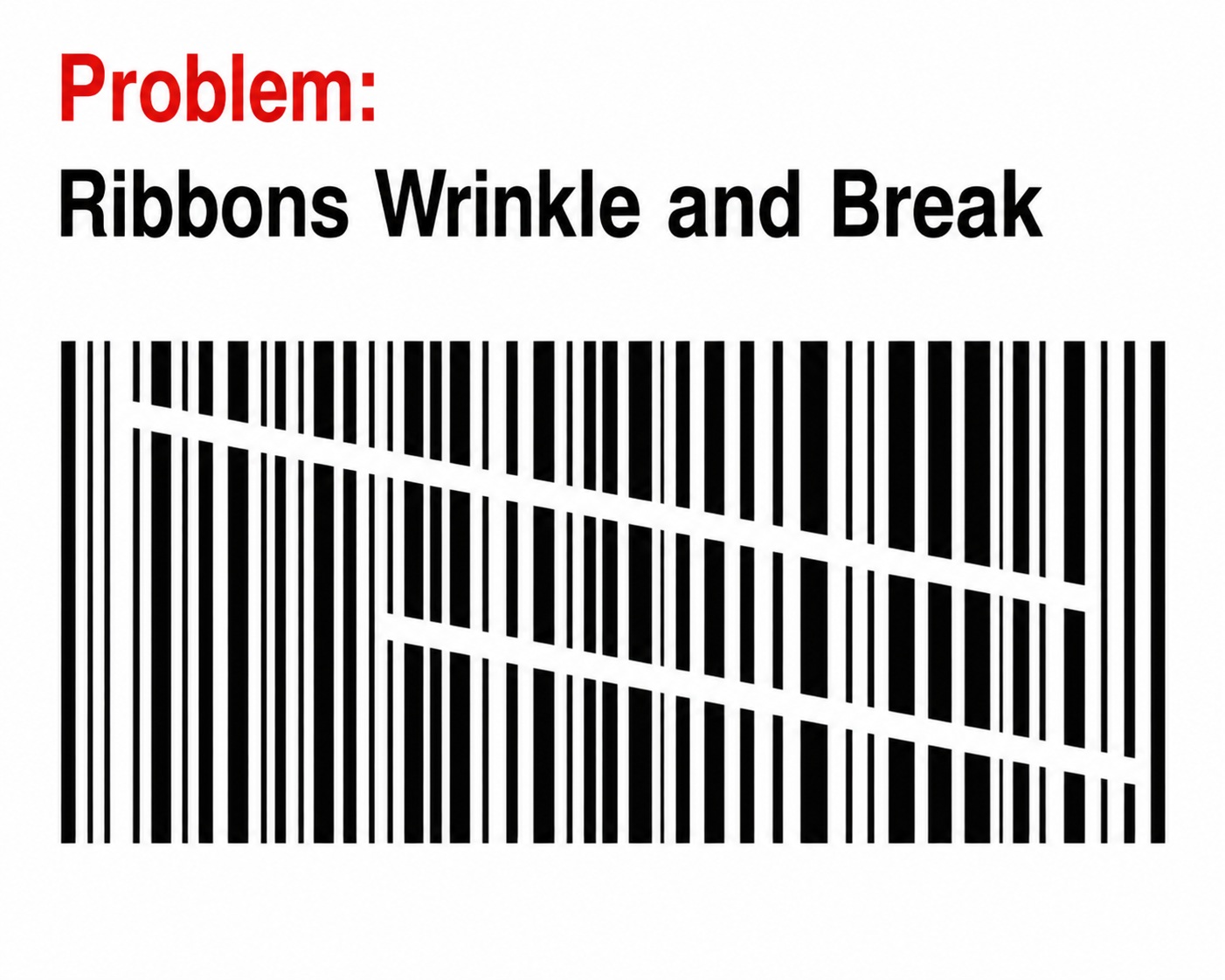
6. Ribbon Wrinkling (Thermal Transfer Printers)
Wrinkled ribbons produce distorted text, poor barcode quality, and uneven printing.
Common Causes
- Incorrect ribbon tension
- Dirty platen roller
- Ribbon wider or narrower than required
- Uneven printhead pressure
- Misaligned media
Solution
- Reload the ribbon carefully.
- Clean the platen roller.
- Use a ribbon slightly wider than the label.
- Adjust printhead pressure if your printer supports it.
- Ensure the ribbon and labels are correctly aligned.
Ribbon wrinkles are often caused by incorrect media loading rather than defective ribbons.
7. Ribbon Breaks Frequently (Thermal Transfer Printers)
A ribbon that repeatedly snaps during printing is usually a sign that the printer is applying too much heat or the ribbon is unsuitable for the application.
Possible Causes
- Print darkness set too high
- Print speed too fast
- Poor-quality ribbon
- Incorrect ribbon formulation
- Ribbon loaded incorrectly
- Excessive printhead pressure
Solution
Reduce:
- Print darkness (heat)
- Print speed
Also check that:
- The ribbon is loaded correctly.
- The ribbon is compatible with the label material.
- The ribbon is not damaged or creased.
Using a high-quality ribbon designed for your application will improve print quality and reduce ribbon breakage.
8. Labels Curl After Printing
Label curling is most commonly seen with synthetic labels such as Polypropylene (PP) or Polyester (PET).
Possible Causes
- Excessive print heat
- Incorrect ribbon formulation
- High ambient temperature
- Improper label storage
Solution
- Reduce the print darkness.
- Lower the print speed if necessary.
- Use a ribbon recommended for the label material.
- Store labels in a cool, dry environment away from direct sunlight.
9. Printer Displays "Offline"
Windows may report that the printer is Offline, preventing any print jobs from being sent.
Possible Causes
- USB cable disconnected
- Ethernet cable unplugged
- Network interruption
- Incorrect printer selected
- Printer driver issue
- Printer paused in Windows
Troubleshooting Steps
Restart:
- Printer
- Computer
Then check:
- USB or network cable
- Printer power
- Default printer selection
- Print queue
- Printer driver
For network printers:
- Verify the printer's IP address.
- Ping the printer from the computer.
- Confirm both devices are on the same network.
- Reinstall the driver if required.
10. Cannot Print from Label Software
Applications such as:
- BarTender
- NiceLabel
- ZebraDesigner
- Loftware
- TEKLYNX
may fail to communicate with the printer.
Common Causes
- Incorrect printer selected
- Wrong printer driver
- Driver conflict
- Incorrect label size
- Windows permissions
Solution
- Install the manufacturer's official printer driver.
- Avoid using generic Windows drivers.
- Select the correct printer inside your label software.
- Verify label dimensions.
- Restart the print spooler if necessary.
11. Barcode Does Not Scan
A barcode may appear perfectly printed yet still fail to scan.
Possible Causes
- Poor print quality
- Incorrect barcode size
- Low print contrast
- Damaged printhead
- Wrong ribbon
- Incorrect barcode symbology
Solution
Increase:
- Print darkness
- Barcode height
- Quiet Zone
- Print quality
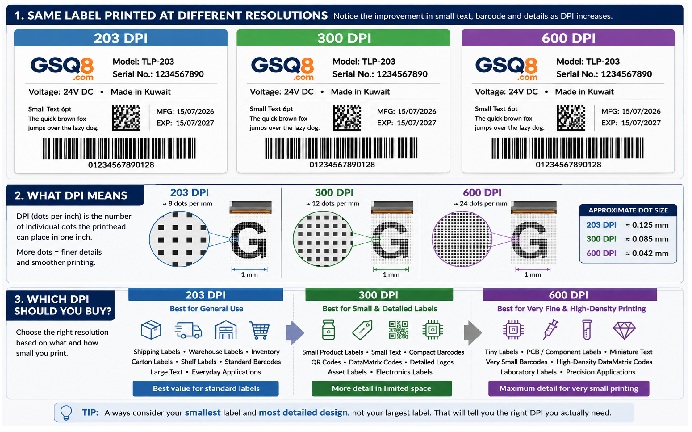
If printing very small barcodes, consider using a 300 DPI printer instead of a 203 DPI model.
Always verify printed barcodes using an actual barcode scanner rather than relying solely on visual inspection.
12. Printer Keeps Rebooting
If the printer continuously restarts by itself, the problem is usually electrical or firmware-related.
Possible Causes
- Faulty power adapter
- Incorrect power supply
- Firmware corruption
- Internal hardware failure
Solution
Check:
- Power adapter voltage
- Adapter output rating
- Power cable
- Printer firmware version
If the problem continues after updating the firmware and replacing the power adapter, professional servicing may be required.
13. Labels Peel Inside the Printer
If labels separate from the liner inside the printer, printing will stop and adhesive residue may contaminate the printer.
Possible Causes
- Low-quality labels
- Weak adhesive
- Excessive heat
- Old label stock
- Humid storage conditions
Prevention
Purchase labels from reputable suppliers.
Store labels:
- In a clean environment
- Away from direct sunlight
- At room temperature
- Inside their original packaging until required
14. Thermal Printhead Gets Dirty Quickly
Frequent contamination usually indicates excessive adhesive build-up or poor-quality labels.
Cleaning Frequency
Normal office use
Clean after every ribbon change or approximately every 5,000–10,000 labels.
Dusty environments
Clean weekly.
Industrial production
Inspect and clean daily.
Regular cleaning prevents print quality problems and extends printhead life.
15. Communication Errors
Communication failures may include:
- USB device not recognised
- COM port unavailable
- Ethernet timeout
- Printer not responding
- Wi-Fi disconnection
Solution
Check:
- USB cable
- Ethernet cable
- Network switch
- COM port settings
- Firewall
- Printer driver
If possible, test using another cable before assuming the printer is faulty.
16. Ribbon Not Detected
Some Thermal Transfer printers report Ribbon Out even though a ribbon is installed.
Common Causes
- Dirty ribbon sensor
- Wrong print method selected
- Ribbon installed incorrectly
- Ribbon broken
- Ribbon core fitted incorrectly
Solution
- Clean the ribbon sensor.
- Reload the ribbon.
- Verify the printer is configured for Thermal Transfer mode.
- Replace damaged ribbon.
- Confirm the ribbon rotates freely during printing.
This problem is particularly common after replacing the ribbon.
17. Paper Jam or Labels Stuck Inside the Printer
Although thermal printers rarely experience traditional paper jams, labels can sometimes become stuck inside the printer.
Possible Causes
- Torn labels
- Excess adhesive
- Dirty platen roller
- Incorrect label width
- Labels separating from the liner
Solution
- Remove all labels and ribbon.
- Carefully remove any adhesive residue.
- Clean the platen roller.
- Reload fresh labels.
- Perform media calibration before printing again.
Never use sharp metal tools to remove stuck labels, as this may damage the printhead.
Preventive Maintenance
Regular preventive maintenance helps reduce downtime, improve print quality, and extend the life of your printer.
Weekly Maintenance
- Clean the printhead.
- Clean the platen roller.
- Remove label dust and adhesive residue.
- Inspect labels and ribbons for damage.
Monthly Maintenance
- Clean the media sensors.
- Inspect the ribbon path.
- Verify media calibration.
- Clean the printer interior.
- Check for loose cables.
Every Six Months
- Update printer firmware.
- Backup printer settings.
- Inspect the platen roller for wear.
- Check printhead condition.
- Inspect gears and moving parts for unusual wear.
Preventive maintenance is considerably less expensive than replacing damaged printer components.
Expert Tips for Longer Printer Life
Use High-Quality Labels and Ribbons
Low-quality consumables often contain excessive adhesive or inconsistent coatings, leading to poor print quality and faster printhead wear.
Choosing high-grade labels and ribbons improves reliability while extending the life of the printhead.
Match Ribbon Width to Label Width
The ribbon should always be slightly wider than the label.
Example:
- Label Width: 100 mm
- Ribbon Width: 110 mm
This protects the edges of the printhead from unnecessary wear.
Never Touch the Printhead
The heating elements are extremely delicate.
Touching the printhead with your fingers transfers oils that can reduce print quality and shorten the printhead's lifespan.
Always handle the printhead carefully.
Keep Dust Away
Dust, paper fibres, and adhesive residue are among the most common causes of print quality problems.
When the printer is not in use:
- Close the printer cover.
- Store labels properly.
- Keep the surrounding area clean.
Clean the Printhead Correctly
Allow the printhead to cool before cleaning.
Use only:
- 99% Isopropyl Alcohol
- Thermal printhead cleaning pen
- Lint-free cloth
Never use:
- Acetone
- Abrasive materials
- Sharp tools
- Metal objects
When Should You Replace Parts?
Replace the Printhead If:
- Permanent vertical white lines appear.
- Missing print dots remain after cleaning.
- Print quality remains poor after calibration.
- The printhead has visible scratches.
- The protective coating has worn away.
A damaged thermal printhead cannot be repaired and should be replaced.
Replace the Platen Roller If:
- Rubber becomes hard.
- Flat spots appear.
- Cracks develop.
- Labels slip during printing.
- Print quality becomes uneven despite a clean printhead.
The platen roller works together with the printhead. Replacing a worn roller often restores print quality and protects the new printhead from premature wear.
Frequently Asked Questions (FAQ)
Why is my label printer printing blank labels?
Blank labels are usually caused by one of the following:
- The labels are loaded upside down (Direct Thermal printers).
- The printer is set to the wrong print method.
- The ribbon is installed incorrectly (Thermal Transfer printers).
- Print darkness is set too low.
For Direct Thermal labels, perform a simple scratch test. Scratch the label surface with your fingernail—if it turns black, that is the printable side and it should face the printhead.
Why does my printer display "Media Out" even though labels are loaded?
This usually indicates that the printer cannot detect the label gap or black mark.
Common causes include:
- Dirty media sensor
- Incorrect sensor position
- Wrong media type selected
- Media calibration required
Cleaning the media sensor and performing a media calibration resolves this problem in most cases.
Why does my printer skip labels or feed extra blank labels?
This is typically caused by incorrect media calibration or mismatched label settings.
Check:
- Label height
- Gap size
- Black mark settings
- Media sensor type
After verifying the settings, perform a complete media calibration.
Why is my printer only printing half of the label?
The label size configured in your software or printer driver does not match the actual label dimensions.
Verify both the printer driver and your label design software use the correct:
- Label width
- Label height
- Gap size
Why is there a white vertical line on every label?
A white vertical line that appears in exactly the same position on every label usually indicates that one or more heating elements inside the thermal printhead have failed.
First, clean the printhead thoroughly.
If the line remains after cleaning, the printhead will usually need to be replaced.
Why is my barcode not scanning?
A barcode may look acceptable to the human eye but still fail to scan.
Possible reasons include:
- Poor print quality
- Low print contrast
- Incorrect barcode dimensions
- Insufficient Quiet Zone
- Damaged printhead
- Wrong barcode symbology
Always verify printed barcodes using a barcode scanner rather than relying only on visual inspection.
Can a dirty printhead really cause printing problems?
Yes.
A dirty printhead can cause:
- Faded printing
- Missing dots
- White streaks
- Poor barcode quality
- Ribbon wrinkles
Cleaning the printhead regularly is one of the most effective ways to maintain consistent print quality.
Can a dirty sensor cause printing problems?
Absolutely.
Dust, adhesive residue, or paper fibres on the media sensor can prevent the printer from correctly detecting label gaps or black marks, leading to:
- Media Out errors
- Skipped labels
- Incorrect label positioning
Keeping the sensor clean helps ensure reliable media detection.
Why does my thermal printer make noise but not print?
If the printer feeds labels but nothing is printed, check:
- Print method (Direct Thermal or Thermal Transfer)
- Ribbon installation
- Label orientation
- Printhead condition
- Printer driver settings
In many cases, the issue is caused by an incorrect print mode rather than a hardware failure.
Why does my ribbon wrinkle during printing?
Ribbon wrinkles are commonly caused by:
- Incorrect ribbon loading
- Uneven printhead pressure
- Dirty platen roller
- Ribbon width that does not match the label width
Reload the ribbon carefully and clean the platen roller before making printhead pressure adjustments.
How often should I clean my thermal printer?
Cleaning frequency depends on your working environment.
Office use
Clean after every ribbon change or every 5,000–10,000 labels.
Dusty environments
Clean weekly.
Industrial production
Inspect and clean the printhead daily.
Regular maintenance significantly extends the life of the printhead and improves barcode quality.
Can I use any ribbon with any printer?
No.
The ribbon must be compatible with:
- Printer model
- Label material
- Printing application
Common ribbon types include:
- Wax
- Wax-Resin
- Resin
Using the wrong ribbon may result in poor print quality, ribbon wrinkles, or premature printhead wear.
Should I use genuine or compatible labels and ribbons?
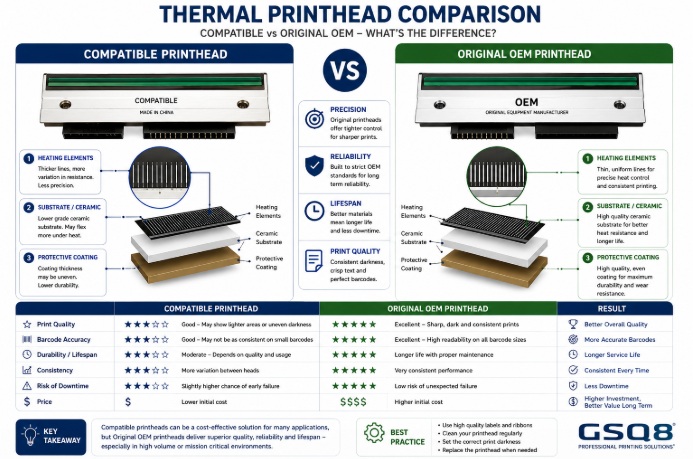
High-quality compatible consumables can perform very well when manufactured to a good standard. However, poor-quality labels or ribbons may contain inconsistent coatings, excessive adhesive, or inferior materials that reduce print quality and shorten printhead life.
Always choose labels and ribbons from a reputable supplier to ensure consistent performance and long-term reliability.