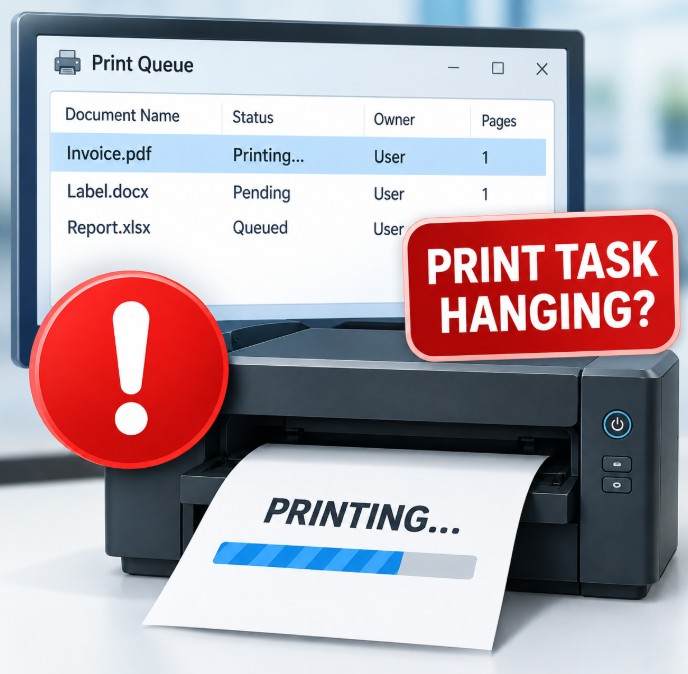
Print Job Won't Cancel? How to Clear a Stuck Print Queue
1. Windows Services Method: Stop and Restart Print Spooler
The Print Spooler is a Windows service responsible for managing print jobs. When a document becomes stuck, restarting this service is often the first troubleshooting step.
Step 1: Open Windows Services
Press:
Windows + R
The Run window will appear.
Enter:
services.msc
Then press Enter.
You can also search for Services from the Windows Start menu.
Step 2: Find Print Spooler
In the Services window, locate:
Print Spooler
The services are normally listed alphabetically.
Right-click Print Spooler and select:
Stop
Keep the Services window open because you will need it again later.
2. Clear the PRINTERS Spool Files
Stopping the Print Spooler prevents Windows from processing the print queue while you remove the stuck spool files.
Step 1: Open the Spool Folder
Press:
Windows + R
Enter:
%windir%\System32\spool\PRINTERS
Press Enter.
If Windows asks for administrator permission, select Continue.
Step 2: Delete the Files
Inside the PRINTERS folder, you may see files associated with pending print jobs.
Select all the files and delete them.
Important: Delete the files inside the PRINTERS folder. Do not delete the PRINTERS folder itself.
These are temporary spool files used by Windows to manage print jobs.
Step 3: Start Print Spooler Again
Return to the Services window.
Right-click:
Print Spooler → Start
Windows will restart the printing service with the previous stuck spool files removed.
Step 4: Check the Print Queue
Open:
Settings → Bluetooth & devices → Printers & scanners
Select your printer and open the print queue.
The stuck document should now be gone.
You can send a small test document to the printer to confirm that printing is working normally.
3. Command Prompt Method
If the print job still refuses to cancel, you can use Command Prompt to stop the Print Spooler, remove the spool files, and restart the service.
This is particularly useful when the Windows interface is unable to clear the print queue.
Step 1: Open Command Prompt as Administrator
Click Start and search for:
Command Prompt
Right-click Command Prompt and select:
Run as administrator
Step 2: Stop the Print Spooler
Enter:
net stop spooler
Press Enter.
Windows should report that the Print Spooler service has stopped.
Step 3: Delete the Stuck Print Files
Enter:
del /Q /F %windir%\System32\spool\PRINTERS\*.*
Press Enter.
This removes the temporary print spool files.
Step 4: Start the Print Spooler
Enter:
net start spooler
Press Enter.
The Print Spooler service will start again.
Complete Command Prompt Fix
For convenience, the three commands are:
net stop spooler
del /Q /F %windir%\System32\spool\PRINTERS\*.*
net start spooler
Run them in this order.
Then open the printer queue and check whether the stuck print job has disappeared.
4. Why Restarting the PC May Not Fix the Problem
One of the most common questions is:
"Why is my print job still stuck after restarting my computer?"
Restarting Windows normally restarts the Print Spooler service, but it does not necessarily solve a corrupted spool file.
Windows temporarily stores print information in:
C:\Windows\System32\spool\PRINTERS
If one of these spool files becomes corrupted, Windows may continue having problems processing the print job.
A computer restart may therefore restart the same process without actually removing the problematic spool file.
Manually stopping the Print Spooler and clearing the spool directory removes the pending files and allows Windows to create a fresh print queue.
Restarting the printer is different
Turning the physical printer off and on also does not necessarily clear a print job stored on the Windows computer.
For example:
Computer → Windows Print Spooler → Printer
If the job is stuck on the computer, restarting the printer will not remove the job from Windows.
5. What to Check If the Print Job Comes Back
Sometimes you successfully clear the print queue, but the same print job appears again.
This usually means something is sending the job again.
Check the following.
Check Other Computers
If multiple computers use the same printer, another workstation may still have the document in its print queue.
Check the other computers connected to the printer.
Check the Print Server
If the printer is connected through a Windows or other print server, the job may be stored on the server rather than your local computer.
In this situation, clearing the queue on your PC may not solve the problem.
The print server queue also needs to be checked.
Check ERP, POS, or Label Printing Software
Business applications can automatically resend failed print jobs.
This can happen with:
- ERP systems
- POS software
- Warehouse management systems
- Accounting software
- Label printing software
- Custom printing applications
Close the relevant application temporarily and test the printer again.
Check the Printer Port
For network printers, check which Windows port is being used.
Common printer connections include:
- Standard TCP/IP Port
- WSD Port
- USB
- Shared Windows printer
For a network printer, confirm that the configured IP address matches the printer's current IP address.
6. USB and Network Printer Troubleshooting
The cause of a stuck print queue can sometimes be the connection between Windows and the printer.
USB Printer Troubleshooting
If your printer is connected through USB:
Try another USB port
Disconnect the printer and connect it to another USB port on the computer.
Avoid using a problematic USB hub while troubleshooting.
Check the USB cable
A damaged or unreliable USB cable can cause communication problems between Windows and the printer.
If available, test with another suitable USB cable.
Reconnect the printer
Turn the printer off, disconnect the USB connection, wait a few seconds, reconnect it, and turn the printer back on.
Then test printing again.
Network Printer Troubleshooting
For an Ethernet or Wi-Fi printer, first determine whether the printer is reachable on the network.
Check the printer's IP address
Many network printers display their IP address on the printer's screen or network configuration page.
For example:
192.168.1.50
The actual address will depend on your network.
Test the printer from a browser
If the printer has a web management interface, enter its IP address into a browser:
http://192.168.1.50
Replace the example address with the printer's actual IP address.
If the printer's web page opens, the computer can generally reach the printer over the network.
Check the Windows printer port
Open:
Settings → Bluetooth & devices → Printers & scanners
Select the printer and open its properties or printer properties.
Check the configured port and confirm that it points to the correct printer.
7. Printer Considerations
The Windows Print Spooler procedure also applies when a Zebra label printer is installed as a Windows printer.
This can be useful with Zebra models such as:
- Zebra ZT231
- Zebra ZT411
- Zebra ZD421
- Zebra ZD621
- Other Zebra printers using Windows print queues
However, it is important to determine where the print job is actually stuck.
If the job is stuck in Windows
Use the Windows Print Spooler procedure described in this guide.
Stop the spooler, clear the spool files, restart the spooler, and test the printer.
If the job has already reached the Zebra printer
Clearing the Windows queue may not remove a job that has already been received by the printer.
In that situation, check the printer's own status, display controls, and available job-cancellation functions.
The exact procedure depends on the Zebra printer model and how the print job was sent.
Network-connected Zebra printers
For Zebra printers connected over Ethernet, also check:
- Printer IP address
- Windows TCP/IP port
- Network connectivity
- Print server configuration
- Zebra printer status
- Label and media settings
- Printer driver
- Printing application
If a Zebra printer prints correctly from one computer but not another, compare the Windows printer configuration between the two computers.
8. Frequently Asked Questions
How do I cancel a print job that won't cancel?
Stop the Print Spooler, delete the temporary files in:
%windir%\System32\spool\PRINTERS
and then restart the Print Spooler.
Why is my print job stuck on "Deleting"?
Windows may be unable to remove the spool file associated with the print job.
Stopping the Print Spooler and manually clearing the spool files can resolve the problem.
Why won't my printer queue clear?
A printer queue may fail to clear because of a corrupted spool file, printer driver problem, network communication issue, print server, or another application that keeps resending the job.
Is it safe to delete files from the PRINTERS folder?
When the Print Spooler is stopped, the files in this folder are temporary print spool files.
Delete the files inside the folder, not the PRINTERS folder itself.
Will this work on Windows 10 and Windows 11?
Yes. The Print Spooler and spool directory method applies to common Windows 10 and Windows 11 print queue problems.
The exact appearance of the printer settings may vary between Windows versions.
Why does the same print job keep coming back?
Another computer, print server, ERP/POS application, label-printing software, or other system may be sending the print job again.
Check the entire printing path rather than repeatedly clearing the local queue.
Does this fix Zebra printer print jobs?
It can fix a stuck Windows print queue when the Zebra printer is installed through Windows.
If the job has already reached the Zebra printer, or is being sent directly through an application or network connection, additional troubleshooting may be necessary.
Should I reinstall the printer driver?
Not necessarily.
If only one print job is stuck, clear the Print Spooler first.
If every print job gets stuck, then investigate the printer driver, printer port, network/USB connection, print server, and printing application before reinstalling the printer.
Quick Fix Checklist
When a Windows print job won't cancel, follow this sequence:
1. Stop Print Spooler
services.msc
Find Print Spooler → Stop.
2. Clear the spool files
%windir%\System32\spool\PRINTERS
Delete the files inside the folder.
3. Start Print Spooler
Go back to Services:
Print Spooler → Start
4. Check the print queue
Confirm that the stuck document has disappeared.
5. Test printing
Send a small test document.
6. If the job returns
Check other computers, print servers, ERP/POS software, label software, printer ports, and network connections.
Final Troubleshooting Checklist
If your Windows print job won't cancel, work through these steps:
- Stop Print Spooler
- Clear the
PRINTERSspool files - Start Print Spooler
- Check the printer queue
- Test with a new document
- Check USB/network connectivity
- Check the printer port and driver
- Check other computers and print servers
- Check ERP, POS, or label-printing software
- For Zebra printers, determine whether the job is stuck in Windows or inside the printer
Still stuck?
If the print job continues to return after clearing the Windows queue, the issue may be outside the local Print Spooler. Check the print server, network connection, printer port, driver, and application sending the print job before reinstalling the printer.
Conclusion
A print job that won't cancel does not always mean that the printer itself is faulty. In many cases, the problem is within the Windows Print Spooler or its temporary spool files.
Stopping the Print Spooler, clearing the PRINTERS spool directory, and restarting the service is a practical first step before reinstalling drivers or replacing the printer.
For network and business printing environments, remember to check the complete printing path-including the PC, print server, printer port, application, network, and physical printer-if the same job continues to return.