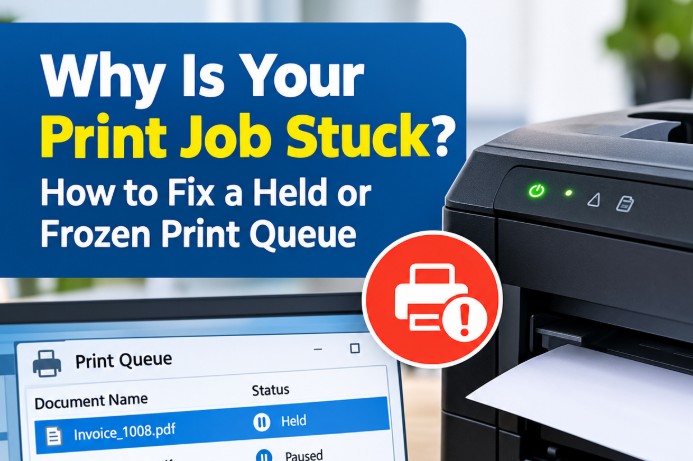
Why Is Your Print Job Stuck? How to Fix a Held or Frozen Print Queue
You click Print, expecting your document, invoice, barcode label, or report to come out immediately-but nothing happens.
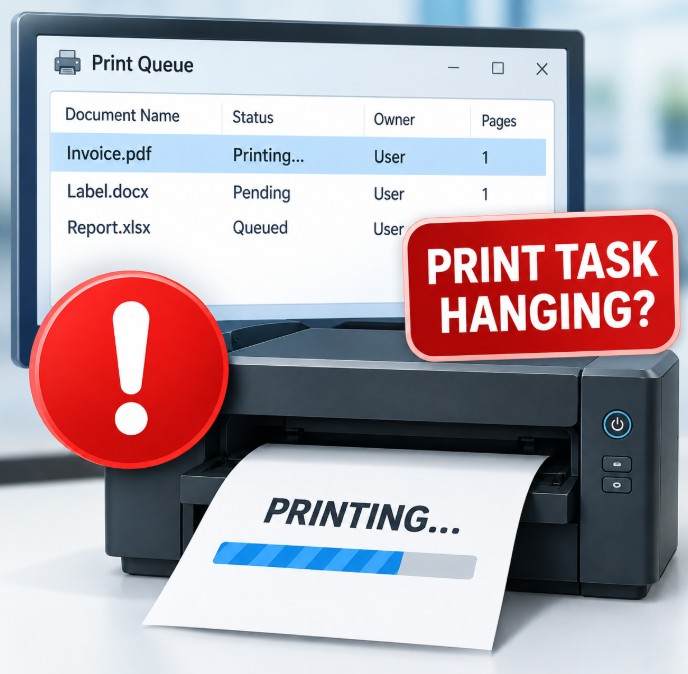
When you check the computer, the print job is sitting in the queue as Held, Paused, Pending, Processing, or Offline. Sometimes deleting the job works. Other times, the job refuses to disappear and prevents everything behind it from printing.
A stuck print queue is usually caused by a problem somewhere between Windows, the Print Spooler, the printer driver, the connection, or the printer itself.
This guide explains the most common causes and provides a step-by-step method to clear a frozen print queue and restore printing.
Why Does a Print Job Get Stuck?
A print job can become stuck for several reasons. The most common ones are:
1. A Problem With the Windows Print Spooler
The Print Spooler is the Windows service responsible for managing print jobs. It receives jobs from applications and sends them to the printer.
If a print job becomes corrupted or the spooler stops responding, one bad job can prevent other jobs from printing.
This is particularly common when a job has been interrupted while printing.
2. The Printer Is Offline
Windows may show a printer as Offline even though the printer itself appears powered on.
This can happen because of:
- Network communication problems
- A changed printer IP address
- A disconnected USB cable
- Wi-Fi problems
- The Use Printer Offline option being enabled
Until Windows can communicate with the printer again, jobs may remain in the queue.
3. A Damaged or Incorrect Printer Driver
The printer driver converts information from Windows applications into instructions the printer understands.
A damaged, outdated, or incompatible driver can cause jobs to remain stuck at Printing or Processing.
This can be especially noticeable after a Windows update or when a printer has been installed using a generic driver.
4. Incorrect Network Port
Network printers can stop responding if Windows is configured to send jobs to the wrong IP address or port.
For example, the printer may have received a new IP address from DHCP while Windows is still trying to send print jobs to its old address.
5. The Printer Has a Physical Error
Sometimes the computer is not the problem.
Check the printer for:
- Paper or media out
- Paper or label jam
- Open cover
- Ribbon error
- Incorrect media
- Printhead error
- Toner or ink warning
- Thermal printer calibration problems
- Printer paused or in an error state
For barcode and label printers, always check the printer's display or status lights before changing Windows settings.
How to Fix a Stuck Print Job in Windows
Work through the following steps in order. Start with the simplest checks before moving to the more advanced solutions.
Step 1: Check the Printer First
Before clearing the Windows queue, check the printer itself.
Make sure:
- The printer is switched on.
- There are no error messages.
- Paper, labels, or other media are loaded correctly.
- The printer cover is properly closed.
- The ribbon or toner is installed correctly.
- The printer is not showing Paused, Offline, or another error condition.
For a network printer, check whether the printer is connected to the network.
For a USB printer, make sure the USB cable is firmly connected.
Important: If the printer has a physical error, clearing the Windows queue will not solve the underlying problem.
Step 2: Cancel the Stuck Print Job
Try removing the job normally first.
In Windows:
- Open Settings.
- Go to Bluetooth & devices > Printers & scanners.
- Select your printer.
- Open the Print queue.
- Select the stuck document.
- Choose Cancel.
Give Windows a few seconds to remove the job.
If it disappears, send a small test document to the printer.
If the job remains stuck or other jobs cannot print, continue to the next step.
Step 3: Restart the Windows Print Spooler
Restarting the Print Spooler is one of the most useful fixes for a frozen print queue.
- Press Windows + R.
- Type:
services.msc
- Press Enter.
- Find Print Spooler in the list.
- Right-click it and select Stop.
Now clear the temporary print files:
- Open File Explorer.
- Go to:
C:\Windows\System32\spool\PRINTERS
- Delete the files inside this folder.
These files are temporary spool files associated with print jobs.
- Return to the Services window.
- Right-click Print Spooler and select Start.
Now try printing again.
Note: Administrator permission may be required to delete the files in the PRINTERS folder.
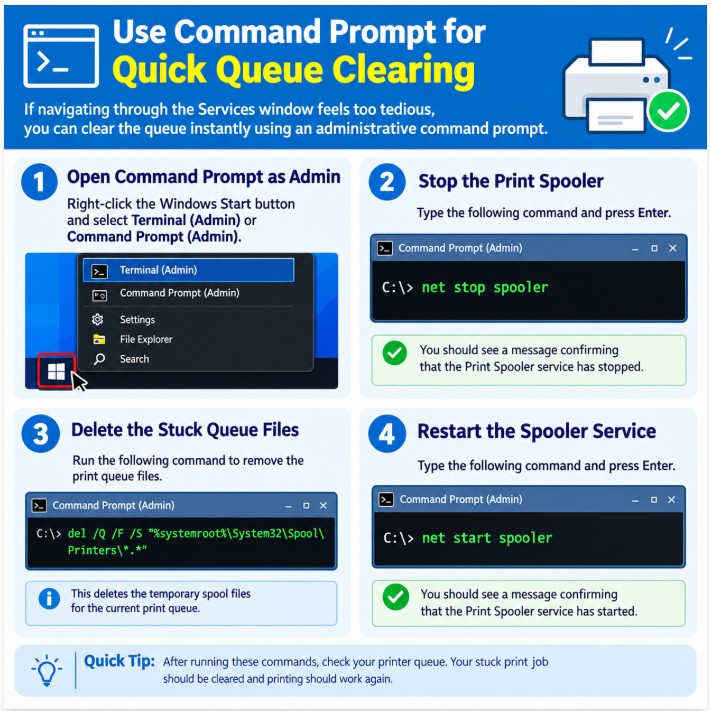
Step 4: Clear the Queue Using Command Prompt
If you regularly troubleshoot Windows printers, you can clear a stuck queue using an elevated Command Prompt or Windows Terminal.
- Right-click the Start button.
- Select Terminal (Admin) or Command Prompt (Admin).
- Run:
net stop spooler
Wait until Windows confirms that the Print Spooler has stopped.
Then run:
del /Q /F /S "%systemroot%\System32\Spool\Printers\*.*"
Finally, restart the spooler:
net start spooler
Open the printer queue again and check whether the stuck job has disappeared.
What does this actually do?
The first command stops the Print Spooler.
The second removes the temporary spool files containing the queued print jobs.
The final command starts the Print Spooler again so Windows can accept new print jobs.
Warning: This removes the jobs currently waiting in the Windows spool folder, so only use this method when you are prepared to clear the existing queue.
Step 5: Check Whether Windows Has Set the Printer Offline
If the queue keeps showing Offline, Windows may not be communicating with the printer correctly.
Go to:
Settings > Bluetooth & devices > Printers & scanners
Select the printer and open its queue.
Depending on your Windows version, check the printer menu or queue settings and make sure Use Printer Offline is not enabled.
Then try printing a small test page.
If it is a USB printer
Try:
- Disconnecting and reconnecting the USB cable
- Using another USB port
- Checking whether Windows detects the printer correctly
Avoid using unnecessarily long or damaged USB cables, particularly in environments where the printer is used continuously.
If it is a network printer
Check whether the printer is still connected to the network.
If possible, print or view the printer's network configuration page and verify its IP address.
Step 6: Check the Printer's IP Address and Port
This is an important step for network printers.
Suppose Windows was configured to send jobs to:
192.168.1.50
but the printer has now received:
192.168.1.75
Windows may continue sending the print job to the old address. The job can then remain stuck even though the printer is working normally.
To check the configured port:
- Open Control Panel.
- Go to Devices and Printers.
- Right-click the printer.
- Select Printer properties.
- Open the Ports tab.
Check the selected port.
For many network printers, a Standard TCP/IP Port configured with the correct printer IP address can provide a more predictable connection than relying on automatically discovered ports.
A note about WSD ports
Windows can install network printers using WSD (Web Services for Devices).
WSD can be convenient, but in some business environments it can make troubleshooting more difficult, particularly when printer IP addresses change.
For a printer that needs a stable network connection-especially a printer used for regular barcode or label printing-administrators may prefer a properly configured Standard TCP/IP Port and a consistent printer IP address.
Step 7: Restart the Printer
Sometimes the printer itself has stopped processing the incoming data.
Turn the printer off and wait for a few seconds.
Then:
- Turn the printer back on.
- Wait until it reaches its ready state.
- Check the Windows print queue.
- Send a small test print.
For thermal label printers, allow the printer to complete its startup and calibration process before sending a new print job.
If the printer repeatedly freezes after receiving a particular type of job, the issue may be related to the driver, print language, label format, or application rather than the Windows queue itself.
Step 8: Check or Reinstall the Printer Driver
If print jobs repeatedly become stuck, even after clearing the queue, investigate the printer driver.
A driver problem may occur after:
- A Windows update
- Installing a different printer driver
- Changing printer models
- Installing multiple drivers
- Removing and reinstalling a printer incorrectly
You can check the installed printer devices through Settings or Device Manager, depending on the printer and Windows version.
For the most reliable result, download the appropriate driver from the printer manufacturer's official support website.
For example, a barcode printer may require the manufacturer's specific Windows driver rather than a generic Windows printer driver.
After reinstalling the driver, restart Windows and test the printer with a simple document.
Step 9: Test With a Simple Print Job
After fixing the queue, don't immediately send a large batch of labels or a complicated document.
Start with something simple:
- A one-page text document
- A Windows test page
- A small barcode label
- A simple PDF
If the simple job prints successfully, gradually test your normal printing workflow.
This helps determine whether the original problem was caused by the queue itself or by a particular document, application, label format, or print job.
Special Considerations for Barcode and Label Printers
A stuck print queue does not always mean the Windows printer queue is the problem.
For thermal barcode and label printers, also check:
Label size and printer settings
Make sure the label size configured in the software matches the actual media.
For example, if the printer is loaded with 100 × 50 mm labels but the software is configured for a different size, the printer may stop, misfeed, or repeatedly calibrate.
Media calibration
If labels are feeding incorrectly or the printer stops between jobs, perform the appropriate media calibration procedure for your printer model.
Ribbon settings
For thermal-transfer printing, verify that the ribbon is installed correctly and that the printer is configured for the correct printing method.
Printhead and media sensors
Dirty sensors or a contaminated printhead can cause printing problems that look like software or queue failures.
If a label printer prints one job and then stops, check the printer's own status before repeatedly clearing the Windows queue.
How to Prevent Print Queues From Getting Stuck
Once the printer is working again, a few simple practices can reduce future problems.
Use a Consistent Network Address
For important network printers, use a stable IP configuration or a DHCP reservation so the printer does not unexpectedly receive a different address.
Keep the Correct Driver Installed
Use the driver intended for your exact printer model and Windows environment.
Avoid installing several different drivers for the same printer unless there is a specific reason.
Avoid Sending Huge Jobs Unnecessarily
Large documents, high-resolution graphics, or very large batches of labels can place additional demands on the computer and printer.
For large label runs, it can be useful to break the job into manageable batches.
Keep Printer Firmware and Software Updated
Where appropriate, check the manufacturer's support resources for firmware and driver updates.
However, avoid changing firmware on a critical production printer without first checking compatibility and the manufacturer's instructions.
Check the Printer Before Clearing Windows
If the printer display says Paper Out, Media Error, Ribbon Out, Cover Open, or another hardware error, fix that problem first.
Repeatedly clearing the Windows queue will not correct a physical printer error.
Quick Troubleshooting Checklist
If a print job is stuck, work through this checklist:
Printer
- Is the printer powered on?
- Is there a paper, label, ribbon, toner, or cover error?
- Does the printer show Ready?
Connection
- Is the USB cable connected?
- Is the network connection working?
- Does the printer have the expected IP address?
Windows
- Is the printer showing Offline?
- Is Use Printer Offline disabled?
- Is the Print Spooler running?
Queue
- Can the job be cancelled normally?
- If not, can the spooler be stopped and the spool files cleared?
Driver
- Is the correct driver installed?
- Did the problem begin after a Windows or driver update?
Printer-specific settings
- Is the correct paper or label size selected?
- Does the media require calibration?
- Are ribbon and print settings correct?
Frequently Asked Questions
Why is my print job stuck in the queue?
A print job can become stuck because of a frozen Windows Print Spooler, printer driver problem, network communication failure, incorrect printer port, or an error on the printer itself.
How do I clear a stuck print job in Windows?
First try cancelling the job from the printer queue. If it will not disappear, stop the Print Spooler, clear the files in C:\Windows\System32\spool\PRINTERS, and restart the Print Spooler.
Why does my printer say Offline when it is turned on?
Windows may show a printer as Offline if it cannot communicate with the printer. Check the network or USB connection, make sure Use Printer Offline is disabled, and verify that the configured printer port and IP address are correct.
What is the Windows Print Spooler?
The Print Spooler is a Windows service that manages print jobs between applications and printers. If the service stops responding or a corrupted job enters the queue, printing can stop until the spooler or queue is reset.
Why does my network printer keep getting stuck?
A network printer may repeatedly stop receiving jobs because of an incorrect or changing IP address, network connectivity problems, driver issues, or an incorrectly configured printer port. Checking the printer's IP address and Windows port configuration is an important troubleshooting step.
Should I use a Standard TCP/IP Port for a network printer?
A properly configured Standard TCP/IP Port can provide a predictable connection to a network printer because Windows sends the print job directly to the printer's configured IP address. This can be useful in business environments where stable network printing is important.
Why is my barcode or label printer not printing even though Windows shows the job as completed?
The problem may be specific to the printer rather than the Windows queue. Check the label size, media type, calibration, ribbon, printer status, sensors, printhead, and printer driver. A label printer can also reject or misinterpret a print job if the software settings do not match the loaded media.
Will clearing the print queue delete my document?
Clearing the Windows print queue removes the pending print job from the printer spooler. It does not normally delete the original document from the application or from your computer.
Why does my printer freeze when printing large files?
Large documents, high-resolution graphics, or large batches of labels can require significant processing and printer memory. Try printing a smaller batch or simpler test document to determine whether the problem is related to the size or complexity of the print job.
When should I reinstall the printer driver?
Consider reinstalling the driver when print jobs repeatedly become stuck, the printer behaves incorrectly after a Windows update, or the installed driver is damaged, incompatible, or incorrect for the printer model.
Recommendation
If a printer regularly gets stuck in the queue, don't assume that replacing the printer is the solution.
Start by identifying where the problem occurs. Check the printer's physical status, then the Windows queue, Print Spooler, connection, printer port, and driver. For network printers, verify the printer's IP address and port configuration. For barcode and label printers, also check media settings, calibration, ribbon, sensors, and printer status.
For businesses that depend on continuous label or document printing, a stable printer setup is just as important as the printer itself. Correct drivers, reliable network configuration, suitable media, and regular maintenance can prevent many recurring printing problems.
If you are selecting a printer for barcode, label, POS, or office printing, choose the printer and consumables according to the actual application rather than simply choosing a model based on its advertised print speed or resolution.
Final Takeaway
A frozen print queue is usually not a sign that the printer itself has failed.
The problem can be anywhere in the printing chain-from the Windows Print Spooler and printer driver to the network connection, printer port, or the printer's own hardware status.
The quickest approach is to troubleshoot from simple to advanced:
Check the printer → cancel the job → restart the Print Spooler → clear the spool files → check the connection and port → verify the driver → test again.
For business environments using barcode or label printers, also check the printer IP address, media settings, calibration, ribbon, sensors, and printer status before assuming the Windows queue is responsible.
If print jobs repeatedly get stuck, even after the queue has been cleared, the underlying issue should be investigated rather than simply deleting the queue each time.