Windows 11 Keyboard Shortcuts & Useful Run Commands
Here’s a practical collection of Windows 11 keyboard shortcuts and Run commands that can help you work faster, manage windows, troubleshoot problems, handle files, take screenshots, and access important Windows tools.
Essential Windows 11 Shortcuts
|
Shortcut |
What it does |
|
Win + E |
Open File Explorer |
|
Win + I |
Open Windows Settings |
|
Win + R |
Open the Run dialog |
|
Win + S |
Open Windows Search |
|
Win + L |
Lock the PC |
|
Win + D |
Show or hide the desktop |
|
Win + V |
Open Clipboard History |
|
Win + X |
Open the Quick Link / Power User menu |
|
Win + A |
Open Quick Settings |
|
Win + N |
Open Notifications and Calendar |
|
Win + Tab |
Open Task View |
|
Alt + Tab |
Switch between open apps |
|
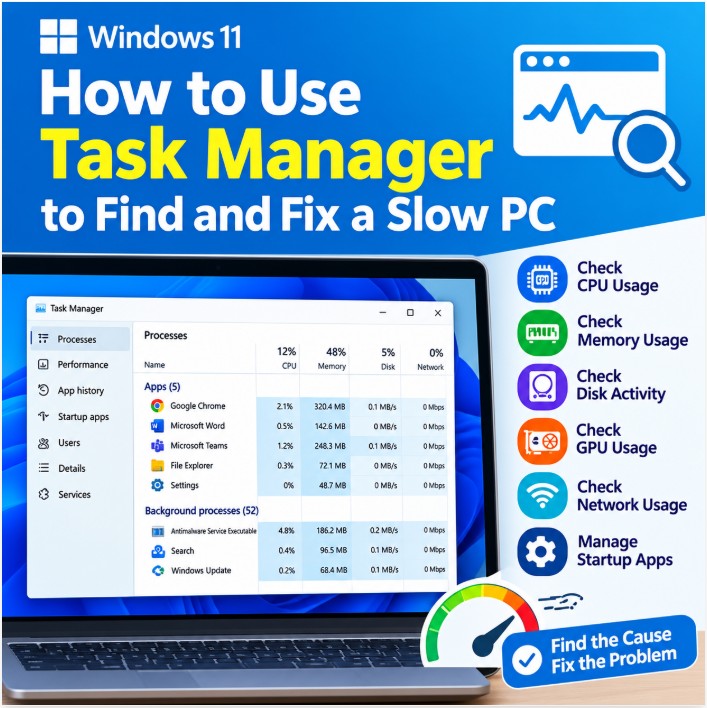
Ctrl + Shift + Esc |
Open Task Manager |
|
Ctrl + Alt + Delete |
Open the Windows Security screen |
Text Editing & General Shortcuts
These shortcuts work in many Windows applications, including text editors, browsers, Microsoft Office and other programs.
|
Shortcut |
What it does |
|
Ctrl + A |
Select all |
|
Ctrl + C |
Copy |
|
Ctrl + X |
Cut |
|
Ctrl + V |
Paste |
|
Ctrl + Z |
Undo |
|
Ctrl + Y |
Redo |
|
Ctrl + F |
Find |
|
Ctrl + H |
Find and Replace |
|
Ctrl + B |
Bold |
|
Ctrl + I |
Italic |
|
Ctrl + U |
Underline |
|
Home |
Move to the beginning of a line |
|
End |
Move to the end of a line |
|
Ctrl + Left Arrow |
Move one word to the left |
|
Ctrl + Right Arrow |
Move one word to the right |
|
Shift + Arrow Keys |
Select text |
|
Ctrl + Shift + Left/Right Arrow |
Select one word at a time |
Window Management
Use these shortcuts to quickly arrange, resize and switch between windows.
|
Shortcut |
What it does |
|
Win + Left Arrow |
Snap window to the left |
|
Win + Right Arrow |
Snap window to the right |
|
Win + Up Arrow |
Maximize the window |
|
Win + Down Arrow |
Minimize or restore the window |
|
Win + Home |
Minimize all windows except the active window |
|
Win + Z |
Open Snap Layouts |
|
Win + Shift + Left/Right Arrow |
Move the active window to another monitor |
|
Alt + F4 |
Close the active window |
|
Alt + Space |
Open the active window's menu |
|
Win + M |
Minimize all windows |
|
Win + Shift + M |
Restore minimized windows |
Screenshots & Screen Recording
Windows 11 includes several built-in shortcuts for capturing your screen.
|
Shortcut |
What it does |
|
Win + Shift + S |
Select an area to capture with Snipping Tool |
|
Win + PrtScn |
Save a full-screen screenshot |
|
PrtScn |
Capture the screen to the clipboard |
|
Win + G |
Open Xbox Game Bar |
|
Win + Alt + R |
Start or stop screen recording with Xbox Game Bar |
Tip: For most users, Win + Shift + S is one of the most useful screenshot shortcuts because you can select exactly which part of the screen you want to capture.
File Explorer Shortcuts
These shortcuts are especially useful when working with files and folders.
|
Shortcut |
What it does |
|
Ctrl + N |
Open a new File Explorer window |
|
Ctrl + W |
Close the current File Explorer window or tab |
|
Ctrl + Shift + N |
Create a new folder |
|
F2 |
Rename the selected file or folder |
|
Delete |
Move the selected item to the Recycle Bin |
|
Shift + Delete |
Permanently delete the selected item |
|
Ctrl + C |
Copy |
|
Ctrl + X |
Cut |
|
Ctrl + V |
Paste |
|
Ctrl + Z |
Undo |
|
Ctrl + A |
Select all |
|
Alt + Enter |
Open Properties |
|
Shift + F10 |
Open the context menu |
Windows Run Commands for IT & Troubleshooting
One of the fastest ways to access Windows administration and troubleshooting tools is through the Run dialog.
How to use Run commands
- Press Win + R
- Type the command.
- Press Enter.
|
Run command |
What it opens |
|
services.msc |
Windows Services |
|
devmgmt.msc |
Device Manager |
|
diskmgmt.msc |
Disk Management |
|
ncpa.cpl |
Network Connections |
|
appwiz.cpl |
Programs and Features |
|
control |
Control Panel |
|
eventvwr |
Event Viewer |
|
compmgmt.msc |
Computer Management |
|
msconfig |
System Configuration |
|
mstsc |
Remote Desktop Connection |
|
cmd |
Command Prompt |
|
powershell |
Windows PowerShell |
Particularly useful for printer troubleshooting
For printer and Windows printing problems, these are especially useful:
|
Command |
Use |
|
services.msc |
Start, stop or restart the Print Spooler service |
|
devmgmt.msc |
Check or reinstall printer drivers through Device Manager |
|
control printers |
Open the classic Devices and Printers window |
|
printmanagement.msc |
Open Print Management on supported Windows editions |
|
eventvwr |
Check Windows Event Viewer for printer-related errors |
Virtual Desktop Shortcuts
Virtual desktops allow you to keep different groups of applications organized.
|
Shortcut |
What it does |
|
Win + Ctrl + D |
Create a new virtual desktop |
|
Win + Ctrl + Left Arrow |
Switch to the virtual desktop on the left |
|
Win + Ctrl + Right Arrow |
Switch to the virtual desktop on the right |
|
Win + Ctrl + F4 |
Close the current virtual desktop |
Taskbar Shortcuts
These shortcuts make it easier to launch and switch between applications pinned to the taskbar.
|
Shortcut |
What it does |
|
Win + 1-9 |
Open or switch to the corresponding taskbar app |
|
Win + Shift + 1-9 |
Open a new instance of the corresponding taskbar app |
|
Win + Alt + 1-9 |
Open the Jump List for the corresponding taskbar app |
|
Win + T |
Move focus through taskbar apps |
|
Win + B |
Move focus to the notification area/system tray |
Display, Connectivity & Accessibility
|
Shortcut |
What it does |
|
Win + P |
Open display/project options |
|
Win + K |
Open the Cast/Connect panel |
|
Win + H |
Start voice typing |
|
Win + U |
Open Accessibility settings |
|
Win + Space |
Switch keyboard language/input method |
|
Win + . |
Open emoji and symbols panel |
|
Win + Ctrl + Enter |
Start Narrator |
|
Win + + |
Zoom in with Magnifier |
|
Win + - |
Zoom out with Magnifier |
|
Win + Esc |
Close Magnifier |
|
Win + Ctrl + O |
Open the On-Screen Keyboard |
|
Win + Ctrl + Q |
Open Quick Assist |
Useful Windows Troubleshooting Shortcuts
Some shortcuts are particularly useful when Windows is not responding correctly.
|
Shortcut |
What it does |
|
Ctrl + Shift + Esc |
Open Task Manager directly |
|
Ctrl + Alt + Delete |
Open security options |
|
Win + Ctrl + Shift + B |
Reset the graphics driver |
|
F5 |
Refresh the current window or page |
|
Shift + F10 |
Open the context menu, similar to right-clicking |
Graphics driver shortcut
If your screen becomes black, freezes, flickers or stops responding, try:
Win + Ctrl + Shift + B
Windows will attempt to reset the graphics driver. You may hear a beep and see the screen briefly flicker.
Other Useful Windows Shortcuts
|
Shortcut |
What it does |
|
Win + C |
Open Copilot or the supported Windows experience |
|
Win + Pause |
Open System/About information |
|
Win + J |
Open Windows Recall when available |
|
Win + Shift + V |
Move through notifications when supported |
|
Ctrl + Shift + Enter |
Run a selected Start/Search result as administrator in supported contexts |
Note: Some Windows shortcuts and features depend on your Windows 11 version, installed components, device hardware, or Microsoft account configuration.
Top 10 Windows Shortcuts Every User Should Know
If you don't want to memorize dozens of shortcuts, start with these:
|
# |
Shortcut |
What it does |
|
1 |
Win + E |
File Explorer |
|
2 |
Win + R |
Run |
|
3 |
Win + I |
Settings |
|
4 |
Win + L |
Lock the PC |
|
5 |
Win + V |
Clipboard History |
|
6 |
Win + Shift + S |
Screenshot |
|
7 |
Win + X |
Power User menu |
|
8 |
Ctrl + Shift + Esc |
Task Manager |
|
9 |
Alt + Tab |
Switch between applications |
|
10 |
Win + Z |
Snap Layouts |
Bonus: 5 Shortcuts IT Technicians Should Know
For technicians and advanced Windows users, these five are particularly valuable:
Win + R → Quickly access Windows administration tools.
services.msc → Manage services such as Print Spooler.
devmgmt.msc → Troubleshoot hardware and device drivers.
eventvwr → Investigate Windows errors and system events.
Win + Ctrl + Shift + B → Reset the graphics driver when the display becomes unresponsive.
Quick Reference
Need Settings? → Win + I
Need File Explorer? → Win + E
Need Run? → Win + R
Need Task Manager? → Ctrl + Shift + Esc
Need to restart Print Spooler? → Win + R → services.msc → Print Spooler → Restart
Need a screenshot? → Win + Shift + S
Need to lock Windows? → Win + L
Need to switch apps? → Alt + Tab
Need to fix a frozen display? → Win + Ctrl + Shift + B
Need Windows troubleshooting tools? → Win + R