How to Fix a Slow Windows 11 PC After an Update
Has your Windows 11 computer suddenly become slow after installing an update?
You may notice that Windows takes longer to start, applications open slowly, File Explorer freezes for a few seconds, or the entire system feels less responsive than before.
This can be frustrating, especially when the computer was working normally before the update.
The good news is that a Windows 11 update does not necessarily mean your computer has become permanently slower. Immediately after an update, Windows may be performing background tasks such as updating applications, rebuilding search indexes, processing system files, installing drivers, or completing other maintenance work.
However, if the computer remains slow after the update has finished, there are several things you can check.
This guide walks through the most useful troubleshooting steps, starting with the easiest ones.
Why Is Windows 11 Slow After an Update?
There isn't one single cause. Common reasons include:
- Windows is still completing background update tasks
- Too many applications are running at startup
- Windows Search is rebuilding its index
- A driver was updated or replaced
- An application is consuming excessive CPU, RAM, or disk resources
- The system drive has very little free space
- Temporary Windows files have accumulated
- A Windows system file has become corrupted
- A third-party application is conflicting with Windows
- Power settings are limiting system performance
- The computer's hardware is simply struggling with newer Windows requirements
Before making major changes, give Windows some time to finish post-update activity and restart the computer.
Step 1: Restart the Computer
This sounds obvious, but it is one of the first things to try after a major Windows update.
Don't simply close the laptop lid or leave the computer running for days.
Select:
Start > Power > Restart
After restarting, allow Windows a few minutes to finish loading background services.
Then test the applications you normally use.
Why does restarting help?
Windows updates can replace system components, drivers, and services. A restart allows Windows to load the updated components properly and complete processes that could not finish while the system was running.
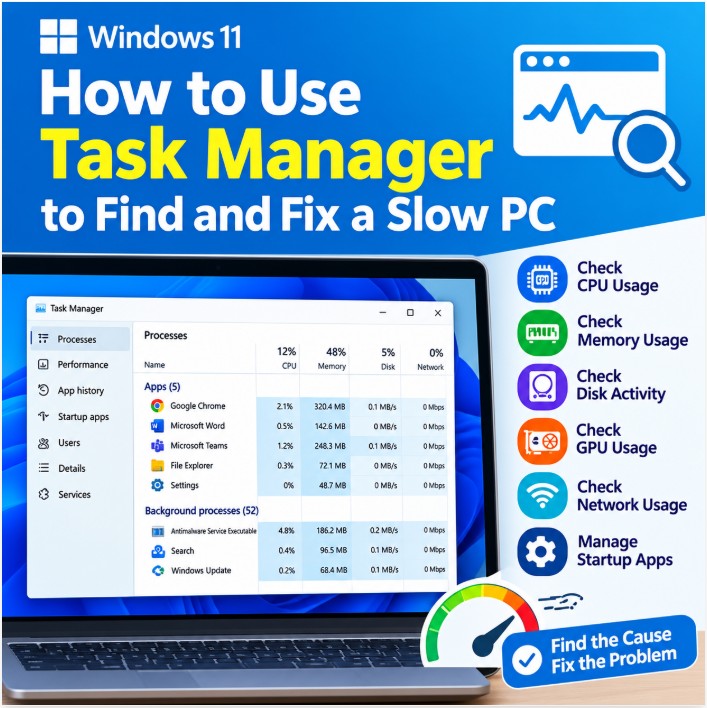
Step 2: Check Task Manager to Find What Is Making Windows Slow
Before changing settings, find out what is actually consuming system resources.
Press:
Ctrl + Shift + Esc
to open Task Manager.
Look at:
- CPU
- Memory
- Disk
- Network
You can click the column headings to sort applications by usage.
If CPU usage is high
Look for an application or Windows process consistently consuming a large percentage of CPU.
A temporary spike immediately after startup may be normal. A process that remains unusually high for a long period deserves further investigation.
If Memory usage is high
You may have too many applications or browser tabs open.
Check whether a particular application is consuming a large amount of RAM.
If Disk usage is constantly near 100%
This can make Windows feel extremely slow.
Possible causes include:
- Windows background activity
- Antivirus scanning
- Search indexing
- A slow hard disk
- Insufficient free storage
- A problematic application
- Storage drive health problems
Task Manager is useful because it tells you whether the problem is actually Windows itself or a particular application.
Step 3: Check Windows Update Again
Sometimes an update is installed in stages.
Go to:
Settings > Windows Update
Check whether Windows is still downloading, installing, or waiting for another restart.
Also check Update history to see whether the recent update installed successfully.
If Windows reports that an update failed, the slowdown may be related to an incomplete installation.
Step 4: Check Free Storage Space
A nearly full system drive can make Windows maintenance and application operations more difficult.
Open:
Settings > System > Storage
Check how much free space is available on the Windows drive.
If your system drive is nearly full, remove unnecessary files.
Windows provides built-in storage management options that can help identify:
- Temporary files
- Large applications
- Unused files
- Recycle Bin contents
- Previous Windows installation files
Important
Don't manually delete unfamiliar folders from the Windows directory just to create free space.
Use Windows Storage settings or another trusted cleanup method instead.
Step 5: Clean Up Temporary Files
Windows creates temporary files during normal operation and during updates.
Go to:
Settings > System > Storage > Temporary files
Review the available categories.
You can usually remove unnecessary temporary files, but read the descriptions before selecting anything you may still need.
After cleanup, restart the computer and check whether performance improves.
Step 6: Reduce Unnecessary Startup Programs
One of the most common reasons an older Windows 11 PC feels slow is having too many applications starting automatically.
Open:
Task Manager > Startup apps
Review the list.
You may find applications such as:
- Chat applications
- Cloud storage programs
- Update helpers
- Printer utilities
- Meeting software
- Manufacturer utilities
- Other applications you rarely use
If an application does not need to start with Windows, you can disable its startup entry.
Be careful
Don't disable Windows system components simply because you don't recognize the name.
If you're unsure about a startup item, research what the application does before disabling it.
Step 7: Check for Driver Problems
A Windows update can sometimes introduce a driver compatibility problem.
This is particularly important for:
- Graphics cards
- Network adapters
- Wi-Fi
- Chipset
- Storage controllers
- Printers
- Bluetooth devices
Open:
Device Manager
Look for devices showing a warning symbol.
You can also check whether the slowdown started immediately after a particular driver update.
For graphics problems
If Windows feels slow when moving windows, playing videos, scrolling, or using graphics-heavy applications, check the graphics driver.
For business computers, it is generally better to use the driver recommended for the exact computer or hardware model rather than installing a random driver from a third-party website.
Step 8: Check Windows Power Mode
Windows can prioritize battery life over performance.
Go to:
Settings > System > Power & battery
Check the Power mode setting.
On a desktop PC, or when a laptop is connected to AC power, a higher-performance setting may improve responsiveness.
However, higher performance can increase power consumption and heat.
For laptops, choose the setting according to how you use the computer rather than keeping maximum performance enabled all the time.
Step 9: Repair Windows System Files
If Windows remains slow or behaves strangely after an update, system files may need to be checked.
Open Terminal (Admin) or Command Prompt (Admin).
Run:
sfc /scannow
Wait until the scan finishes.
The System File Checker can detect and repair certain corrupted Windows system files.
If SFC reports problems it cannot repair
You can also use the Deployment Image Servicing and Management tool:
DISM /Online /Cleanup-Image /RestoreHealth
Allow the process to finish.
Then run:
sfc /scannow
again.
Finally, restart the computer.
Important
Do not close the Terminal window while these operations are running unless Windows specifically indicates that the process has finished.
Step 10: Check Whether an Application Is Causing the Slowdown
Sometimes the Windows update isn't actually the problem.
An application may have updated at the same time and started consuming more CPU, memory, or disk resources.
Use Task Manager to identify applications with unusually high resource usage.
If one application consistently causes the problem, check for an update from the application's developer.
You can also temporarily close the application and see whether Windows becomes responsive again.
Step 11: Check Your Antivirus and Security Software
Security software can perform additional scanning after major system changes.
This may temporarily increase CPU or disk usage.
If the slowdown happens only for a short period after the update and then disappears, background security scanning may have contributed.
Don't permanently disable antivirus protection just to improve performance.
Instead, check whether the security software has pending updates or whether a scheduled scan is running.
Step 12: Check Your Storage Drive
The type of storage drive makes a major difference to Windows performance.
A computer using an older mechanical HDD may feel much slower than a similar computer using an SSD, particularly when Windows is performing updates, indexing files, or loading applications.
If Task Manager repeatedly shows very high disk activity and the computer uses an old HDD, the storage drive itself may be the limiting factor.
SSD upgrade
For an older computer that still has a healthy processor and sufficient RAM, replacing an old HDD with an SSD can make a noticeable difference in everyday responsiveness.
This can often provide a larger practical improvement than repeatedly changing Windows visual settings.
Step 13: Check RAM Usage
Open:
Task Manager > Performance > Memory
Check how much RAM is installed and how much is currently being used.
For example, a computer with limited RAM may become slow when you have:
- Many browser tabs
- Microsoft Office applications
- Teams or other communication software
- Accounting software
- PDF applications
- Antivirus software
- Other programs running simultaneously
If memory usage is consistently high during your normal workload, additional RAM may be more useful than changing Windows settings.
Step 14: Try Windows Troubleshooting Options
If the slowdown began immediately after a particular Windows update, check:
Settings > Windows Update > Update history
Identify the update that was installed around the time the problem began.
If the issue is clearly associated with a recent update and normal troubleshooting has not helped, Windows provides recovery options that may allow you to remove certain recently installed updates, depending on the update and system configuration.
Before removing an update
Consider:
- Whether the update actually coincides with the slowdown
- Whether other users or applications are affected
- Whether the problem is caused by a driver or application instead
- Whether the update contains important security fixes
Avoid removing updates as the first troubleshooting step.
Step 15: Use System Restore When Appropriate
If System Restore was enabled and a suitable restore point exists, it can sometimes help when a recent software or driver change caused the problem.
System Restore is designed to roll back certain system changes without removing personal files.
However, it is not a substitute for a backup.
Always maintain a separate backup of important documents, business data, photos, and other files.
Step 16: Perform a Clean Boot if the Problem Continues
If Windows runs normally in some circumstances but becomes slow after startup, a third-party service or application may be responsible.
A clean boot starts Windows with a minimal set of drivers and startup programs.
This can help determine whether a third-party application is causing the slowdown.
This is an advanced troubleshooting step, so don't randomly disable Windows services.
If the computer is used for business operations, record the original settings before making changes.
Don't Blame the Windows Update Too Quickly
This is an important point.
If a computer becomes slow after an update, that does not automatically mean the update itself is defective.
The update may have exposed an existing limitation or problem, such as:
- An aging HDD
- Low RAM
- An outdated driver
- Nearly full storage
- A problematic startup application
- Antivirus scanning
- An application that was updated at the same time
Finding the actual resource bottleneck is usually more useful than simply uninstalling the latest Windows update.
What If Nothing Works?
If you have tried the steps above and Windows is still significantly slower, consider the following:
Check the hardware
Look at:
- RAM
- SSD/HDD health
- CPU performance
- Temperature
- Available storage
Check the software environment
Look for:
- Recently installed applications
- Driver changes
- Startup programs
- Security software
- Background services
Consider a Windows repair or reset
If Windows has developed serious system problems and normal troubleshooting has failed, Windows recovery options may be appropriate.
Before using Reset this PC or reinstalling Windows, make sure important data is backed up.
A reset should be considered a later troubleshooting step-not the first response to a slow computer.
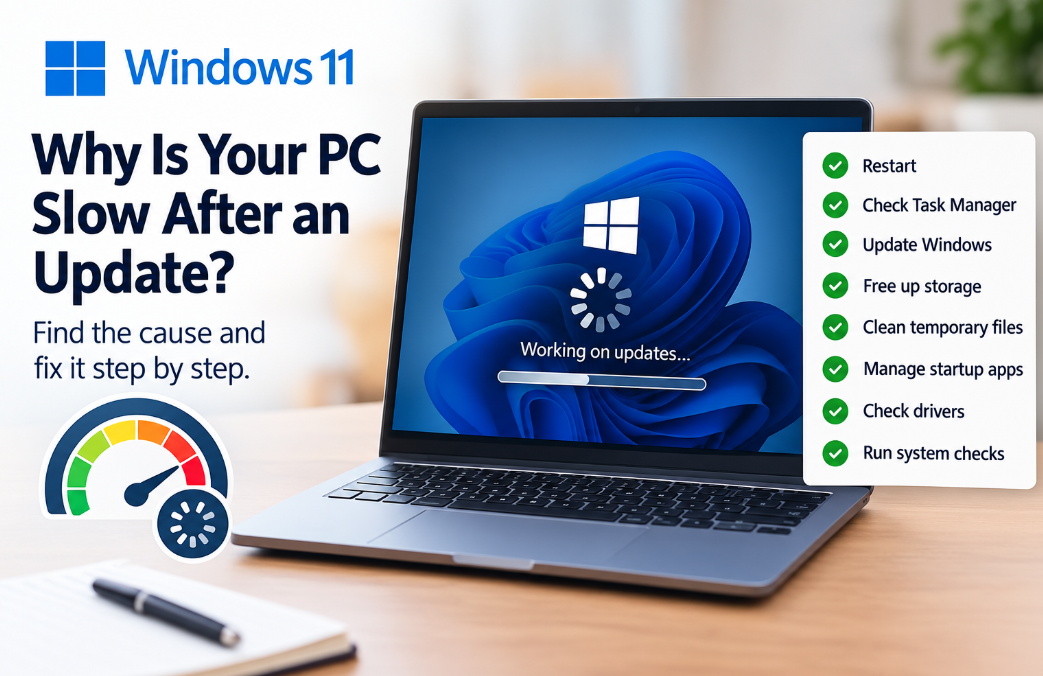
Quick Checklist: Windows 11 Slow After Update
If your Windows 11 PC suddenly becomes slow, work through this list:
First:
- Restart the computer
- Check Windows Update
- Check Task Manager
- Check available storage
Then:
- Remove unnecessary temporary files
- Reduce startup applications
- Check drivers
- Check Power mode
- Check RAM and disk usage
If the problem continues:
- Run sfc /scannow
- Run DISM /Online /Cleanup-Image /RestoreHealth
- Check recently installed drivers and applications
- Investigate storage drive health
- Consider System Restore or Windows recovery options
Recommendation
When a Windows 11 computer becomes slow after an update, don't immediately format the computer or assume that the hardware has failed.
Start by finding what is actually slowing the system down.
Task Manager is often the best starting point because it can show whether the problem is CPU, memory, disk, or a particular application.
For older business computers, also look at the hardware. A computer with an older HDD and limited RAM may struggle with modern Windows workloads even when Windows itself is working correctly.
If the computer is otherwise healthy, a suitable SSD upgrade, additional RAM, correct drivers, and proper startup management may provide a much more practical improvement than repeatedly reinstalling Windows.
For business users, always back up important files before performing major repairs, system recovery, hardware upgrades, or Windows reinstallation.